Making a scatter plot with lists
In this exercise, we’ll use a dataset that contains information about 227 countries. This dataset has lots of interesting information on each country, such as the country’s birth rates, death rates, and its gross domestic product (GDP). GDP is the value of all the goods and services produced in a year, expressed as dollars per person.
There are three lists of data from this dataset. gdp is a list that contains the value of GDP per country, expressed as dollars per person. phones is a list of the number of mobile phones per 1,000 people in that country. Finally, percent_literate is a list that contains the percent of each country’s population that can read and write.
# Import Matplotlib and Seaborn
import matplotlib.pyplot as plt
import matplotlib.axes as ax
import seaborn as sns

gdp = [700.0, 4500.0, 6000.0, 8000.0, 19000.0, 1900.0, 8600.0, 11000.0, 11200.0, 3500.0, 28000.0, 29000.0, 30000.0, 3400.0, 16700.0, 16900.0, 1900.0, 15700.0, 6100.0, 29100.0, 4900.0, 1100.0, 36000.0, 1300.0, 2400.0, 6100.0, 9000.0, 7600.0, 16000.0, 18600.0, 7600.0, 1100.0, 1800.0, 600.0, 1900.0, 1800.0, 29800.0, 1400.0, 35000.0, 1100.0, 1200.0, 9900.0, 5000.0, 6300.0, 700.0, 700.0, 700.0, 5000.0, 9100.0, 1400.0, 10600.0, 2900.0, 19200.0, 15700.0, 31100.0, 1300.0, 5400.0, 6000.0, 500.0, 3300.0, 4000.0, 4800.0, 2700.0, 700.0, 12300.0, 700.0, 22000.0, 5800.0, 27400.0, 27600.0, 8300.0, 17500.0, 5500.0, 1700.0, 600.0, 2500.0, 27600.0, 2200.0, 17500.0, 20000.0, 20000.0, 5000.0, 8000.0, 21000.0, 4100.0, 20000.0, 2100.0, 800.0, 4000.0, 1600.0, 2600.0, 28800.0, 13900.0, 30900.0, 2900.0, 3200.0, 7000.0, 1500.0, 29600.0, 21000.0, 19800.0, 26700.0, 3900.0, 28200.0, 24800.0, 4300.0, 6300.0, 1000.0, 800.0, 1300.0, 17800.0, 19000.0, 1600.0, 1700.0, 10200.0, 4800.0, 3000.0, 1000.0, 6400.0, 25000.0, 11400.0, 55100.0, 19400.0, 6700.0, 800.0, 600.0, 9000.0, 3900.0, 900.0, 17700.0, 1600.0, 14400.0, 1800.0, 11400.0, 2600.0, 9000.0, 2000.0, 1800.0, 27000.0, 1800.0, 3400.0, 4000.0, 1200.0, 7200.0, 5000.0, 1400.0, 28600.0, 11400.0, 15000.0, 21600.0, 2300.0, 800.0, 900.0, 12500.0, 37800.0, 13100.0, 2100.0, 9000.0, 6300.0, 2200.0, 4700.0, 5100.0, 4600.0, 11100.0, 18000.0, 16800.0, 21500.0, 5800.0, 7000.0, 8900.0, 1300.0, 2500.0, 8800.0, 5400.0, 6900.0, 2900.0, 5600.0, 34600.0, 1200.0, 11800.0, 1600.0, 2200.0, 7800.0, 500.0, 23700.0, 13300.0, 19000.0, 1700.0, 500.0, 10700.0, 22000.0, 3700.0, 1900.0, 4000.0, 4900.0, 26800.0, 32700.0, 3300.0, 23400.0, 1000.0, 600.0, 7400.0, 1500.0, 2200.0, 9500.0, 6900.0, 6700.0, 5800.0, 9600.0, 1100.0, 1400.0, 5400.0, 23200.0, 27700.0, 37800.0, 12800.0, 1700.0, 2900.0, 4800.0, 2500.0, 17200.0, 3700.0, 800.0, 'nan', 800.0, 800.0, 1900.0]
phones = [3.2, 71.2, 78.1, 259.5, 497.2, 7.8, 460.0, 549.9, 220.4, 195.7, 516.1, 565.5, 452.2, 137.1, 460.6, 281.3, 7.3, 481.9, 319.1, 462.6, 115.7, 9.7, 851.4, 14.3, 71.9, 215.4, 80.5, 225.3, 506.5, 237.2, 336.3, 7.0, 10.1, 3.4, 2.6, 5.7, 552.2, 169.6, 836.3, 2.3, 1.3, 213.0, 266.7, 176.2, 24.5, 0.2, 3.7, 289.9, 340.7, 14.6, 420.4, 74.7, 'nan', 314.3, 614.6, 22.8, 304.8, 97.4, 'nan', 125.6, 131.8, 142.4, 18.5, 7.9, 333.8, 8.2, 503.8, 112.6, 405.3, 586.4, 255.6, 194.5, 27.4, 26.8, 244.3, 146.6, 667.9, 14.4, 877.7, 589.7, 448.9, 364.5, 463.8, 492.0, 92.1, 842.4, 2.7, 7.4, 143.5, 16.9, 67.5, 546.7, 336.2, 647.7, 45.4, 52.0, 276.4, 38.6, 500.5, 676.0, 462.3, 430.9, 124.0, 461.2, 811.3, 104.5, 164.1, 8.1, 42.7, 42.4, 486.1, 211.0, 84.0, 14.1, 321.4, 255.6, 23.7, 2.3, 127.1, 585.5, 223.4, 515.4, 384.9, 260.0, 3.6, 7.9, 179.0, 90.0, 6.4, 505.0, 91.2, 394.4, 12.9, 289.3, 49.7, 181.6, 114.8, 208.1, 1035.6, 55.1, 'nan', 40.4, 3.5, 62.6, 143.0, 15.9, 460.8, 365.3, 252.2, 441.7, 39.7, 1.9, 9.3, 254.7, 461.7, 85.5, 31.8, 325.6, 137.9, 10.9, 49.2, 79.5, 38.4, 306.3, 399.2, 283.1, 232.0, 380.9, 196.9, 280.6, 2.7, 293.3, 638.9, 303.3, 683.2, 190.9, 75.2, 704.3, 36.2, 140.6, 22.2, 285.8, 262.4, 4.0, 411.4, 220.1, 406.1, 13.4, 11.3, 107.0, 453.5, 61.5, 16.3, 184.7, 30.8, 715.0, 680.9, 153.8, 591.0, 33.5, 4.0, 108.9, 10.6, 97.7, 303.5, 123.6, 269.5, 74.6, 269.5, 59.3, 3.6, 259.9, 475.3, 543.5, 898.0, 291.4, 62.9, 32.6, 140.1, 187.7, 652.8, 118.6, 145.2, 'nan', 37.2, 8.2, 26.8]
percent_literate = [36.0, 86.5, 70.0, 97.0, 100.0, 42.0, 95.0, 89.0, 97.1, 98.6, 97.0, 100.0, 98.0, 97.0, 95.6, 89.1, 43.1, 97.4, 99.6, 98.0, 94.1, 40.9, 98.0, 42.2, 87.2, 'nan', 79.8, 86.4, 97.8, 93.9, 98.6, 26.6, 85.3, 51.6, 69.4, 79.0, 97.0, 76.6, 98.0, 51.0, 47.5, 96.2, 90.9, 92.5, 56.5, 65.5, 83.8, 95.0, 96.0, 50.9, 98.5, 97.0, 97.6, 99.9, 100.0, 67.9, 94.0, 84.7, 58.6, 92.5, 57.7, 80.2, 85.7, 58.6, 99.8, 42.7, 'nan', 93.7, 100.0, 99.0, 83.0, 98.0, 63.2, 40.1, 'nan', 99.0, 99.0, 74.8, 'nan', 97.5, 'nan', 98.0, 90.0, 99.0, 70.6, 'nan', 35.9, 42.4, 98.8, 52.9, 76.2, 93.5, 99.4, 99.9, 59.5, 87.9, 79.4, 40.4, 98.0, 'nan', 95.4, 98.6, 87.9, 99.0, 'nan', 91.3, 98.4, 85.1, 'nan', 99.0, 97.9, 83.5, 97.0, 66.4, 99.8, 87.4, 84.8, 57.5, 82.6, 100.0, 99.6, 100.0, 94.5, 'nan', 68.9, 62.7, 88.7, 97.2, 46.4, 92.8, 93.7, 97.7, 41.7, 85.6, 'nan', 92.2, 89.0, 99.1, 99.0, 97.8, 97.0, 51.7, 47.8, 84.0, 'nan', 45.2, 99.0, 96.7, 91.0, 99.0, 67.5, 17.6, 68.0, 97.0, 100.0, 75.8, 45.7, 92.0, 92.6, 64.6, 94.0, 90.9, 92.6, 99.8, 93.3, 94.1, 82.5, 88.9, 98.4, 99.6, 70.4, 97.0, 97.0, 67.0, 99.0, 96.0, 99.7, 96.0, 79.3, 78.8, 40.2, 93.0, 58.0, 31.4, 92.5, 'nan', 99.7, 'nan', 37.8, 86.4, 97.9, 92.3, 61.1, 93.0, 81.6, 99.0, 99.0, 76.9, 96.1, 99.4, 78.2, 92.6, 60.9, 98.5, 98.6, 74.2, 86.5, 98.0, 98.0, 'nan', 69.9, 99.7, 77.9, 99.0, 97.0, 98.0, 99.3, 53.0, 93.4, 90.3, 'nan', 50.0, 'nan', 'nan', 50.2, 80.6, 90.7]
# Create scatter plot with GDP on the x-axis and number of phones on the y-axis

sns.scatterplot(x=gdp, y=phones)

# Get current axis
# https://matplotlib.org/stable/api/_as_gen/matplotlib.pyplot.gca.html
ax = plt.gca()

# Y axis is plotting inverted. Revert axis to correct orientation.
# https://matplotlib.org/stable/api/_as_gen/matplotlib.axes.Axes.invert_yaxis.html
ax.invert_yaxis()

plt.title('GDP vs Phones per 1000 People')
plt.show()

# Change this scatter plot to have percent literate on the y-axis
sns.scatterplot(x=gdp, y=percent_literate)
ax = plt.gca()
ax.invert_yaxis()
plt.title('GDP vs Percentage Lierate')
plt.show()

Making a count plot with a list
Above, we explored a dataset that contains information about 227 countries. Let’s do more exploration of this data – specifically, how many countries are in each region of the world?
To do this, we’ll need to use a count plot. Count plots take in a categorical list and return bars that represent the number of list entries per category. You can create one here using a list of regions for each country, which is a variable named region.
region = ['ASIA (EX. NEAR EAST)', 'EASTERN EUROPE', 'NORTHERN AFRICA', 'OCEANIA', 'WESTERN EUROPE', 'SUB-SAHARAN AFRICA', 'LATIN AMER. & CARIB', 'LATIN AMER. & CARIB', 'LATIN AMER. & CARIB', 'C.W. OF IND. STATES', 'LATIN AMER. & CARIB', 'OCEANIA', 'WESTERN EUROPE', 'C.W. OF IND. STATES', 'LATIN AMER. & CARIB', 'NEAR EAST', 'ASIA (EX. NEAR EAST)', 'LATIN AMER. & CARIB', 'C.W. OF IND. STATES', 'WESTERN EUROPE', 'LATIN AMER. & CARIB', 'SUB-SAHARAN AFRICA', 'NORTHERN AMERICA', 'ASIA (EX. NEAR EAST)', 'LATIN AMER. & CARIB', 'EASTERN EUROPE', 'SUB-SAHARAN AFRICA', 'LATIN AMER. & CARIB', 'LATIN AMER. & CARIB', 'ASIA (EX. NEAR EAST)', 'EASTERN EUROPE', 'SUB-SAHARAN AFRICA', 'ASIA (EX. NEAR EAST)', 'SUB-SAHARAN AFRICA', 'ASIA (EX. NEAR EAST)', 'SUB-SAHARAN AFRICA', 'NORTHERN AMERICA', 'SUB-SAHARAN AFRICA', 'LATIN AMER. & CARIB', 'SUB-SAHARAN AFRICA', 'SUB-SAHARAN AFRICA', 'LATIN AMER. & CARIB', 'ASIA (EX. NEAR EAST)', 'LATIN AMER. & CARIB', 'SUB-SAHARAN AFRICA', 'SUB-SAHARAN AFRICA', 'SUB-SAHARAN AFRICA', 'OCEANIA', 'LATIN AMER. & CARIB', 'SUB-SAHARAN AFRICA', 'EASTERN EUROPE', 'LATIN AMER. & CARIB', 'NEAR EAST', 'EASTERN EUROPE', 'WESTERN EUROPE', 'SUB-SAHARAN AFRICA', 'LATIN AMER. & CARIB', 'LATIN AMER. & CARIB', 'ASIA (EX. NEAR EAST)', 'LATIN AMER. & CARIB', 'NORTHERN AFRICA', 'LATIN AMER. & CARIB', 'SUB-SAHARAN AFRICA', 'SUB-SAHARAN AFRICA', 'BALTICS', 'SUB-SAHARAN AFRICA', 'WESTERN EUROPE', 'OCEANIA', 'WESTERN EUROPE', 'WESTERN EUROPE', 'LATIN AMER. & CARIB', 'OCEANIA', 'SUB-SAHARAN AFRICA', 'SUB-SAHARAN AFRICA', 'NEAR EAST', 'C.W. OF IND. STATES', 'WESTERN EUROPE', 'SUB-SAHARAN AFRICA', 'WESTERN EUROPE', 'WESTERN EUROPE', 'NORTHERN AMERICA', 'LATIN AMER. & CARIB', 'LATIN AMER. & CARIB', 'OCEANIA', 'LATIN AMER. & CARIB', 'WESTERN EUROPE', 'SUB-SAHARAN AFRICA', 'SUB-SAHARAN AFRICA', 'LATIN AMER. & CARIB', 'LATIN AMER. & CARIB', 'LATIN AMER. & CARIB', 'ASIA (EX. NEAR EAST)', 'EASTERN EUROPE', 'WESTERN EUROPE', 'ASIA (EX. NEAR EAST)', 'ASIA (EX. NEAR EAST)', 'ASIA (EX. NEAR EAST)', 'NEAR EAST', 'WESTERN EUROPE', 'WESTERN EUROPE', 'NEAR EAST', 'WESTERN EUROPE', 'LATIN AMER. & CARIB', 'ASIA (EX. NEAR EAST)', 'WESTERN EUROPE', 'NEAR EAST', 'C.W. OF IND. STATES', 'SUB-SAHARAN AFRICA', 'OCEANIA', 'ASIA (EX. NEAR EAST)', 'ASIA (EX. NEAR EAST)', 'NEAR EAST', 'C.W. OF IND. STATES', 'ASIA (EX. NEAR EAST)', 'BALTICS', 'NEAR EAST', 'SUB-SAHARAN AFRICA', 'SUB-SAHARAN AFRICA', 'NORTHERN AFRICA', 'WESTERN EUROPE', 'BALTICS', 'WESTERN EUROPE', 'ASIA (EX. NEAR EAST)', 'EASTERN EUROPE', 'SUB-SAHARAN AFRICA', 'SUB-SAHARAN AFRICA', 'ASIA (EX. NEAR EAST)', 'ASIA (EX. NEAR EAST)', 'SUB-SAHARAN AFRICA', 'WESTERN EUROPE', 'OCEANIA', 'LATIN AMER. & CARIB', 'SUB-SAHARAN AFRICA', 'SUB-SAHARAN AFRICA', 'SUB-SAHARAN AFRICA', 'LATIN AMER. & CARIB', 'OCEANIA', 'C.W. OF IND. STATES', 'WESTERN EUROPE', 'ASIA (EX. NEAR EAST)', 'LATIN AMER. & CARIB', 'NORTHERN AFRICA', 'SUB-SAHARAN AFRICA', 'SUB-SAHARAN AFRICA', 'OCEANIA', 'ASIA (EX. NEAR EAST)', 'WESTERN EUROPE', 'LATIN AMER. & CARIB', 'OCEANIA', 'OCEANIA', 'LATIN AMER. & CARIB', 'SUB-SAHARAN AFRICA', 'SUB-SAHARAN AFRICA', 'OCEANIA', 'WESTERN EUROPE', 'NEAR EAST', 'ASIA (EX. NEAR EAST)', 'OCEANIA', 'LATIN AMER. & CARIB', 'OCEANIA', 'LATIN AMER. & CARIB', 'LATIN AMER. & CARIB', 'ASIA (EX. NEAR EAST)', 'EASTERN EUROPE', 'WESTERN EUROPE', 'LATIN AMER. & CARIB', 'NEAR EAST', 'SUB-SAHARAN AFRICA', 'EASTERN EUROPE', 'C.W. OF IND. STATES', 'SUB-SAHARAN AFRICA', 'SUB-SAHARAN AFRICA', 'LATIN AMER. & CARIB', 'LATIN AMER. & CARIB', 'NORTHERN AMERICA', 'LATIN AMER. & CARIB', 'OCEANIA', 'WESTERN EUROPE', 'SUB-SAHARAN AFRICA', 'NEAR EAST', 'SUB-SAHARAN AFRICA', 'EASTERN EUROPE', 'SUB-SAHARAN AFRICA', 'SUB-SAHARAN AFRICA', 'ASIA (EX. NEAR EAST)', 'EASTERN EUROPE', 'EASTERN EUROPE', 'OCEANIA', 'SUB-SAHARAN AFRICA', 'SUB-SAHARAN AFRICA', 'WESTERN EUROPE', 'ASIA (EX. NEAR EAST)', 'SUB-SAHARAN AFRICA', 'LATIN AMER. & CARIB', 'SUB-SAHARAN AFRICA', 'WESTERN EUROPE', 'WESTERN EUROPE', 'NEAR EAST', 'ASIA (EX. NEAR EAST)', 'C.W. OF IND. STATES', 'SUB-SAHARAN AFRICA', 'ASIA (EX. NEAR EAST)', 'SUB-SAHARAN AFRICA', 'OCEANIA', 'LATIN AMER. & CARIB', 'NORTHERN AFRICA', 'NEAR EAST', 'C.W. OF IND. STATES', 'LATIN AMER. & CARIB', 'OCEANIA', 'SUB-SAHARAN AFRICA', 'C.W. OF IND. STATES', 'NEAR EAST', 'WESTERN EUROPE', 'NORTHERN AMERICA', 'LATIN AMER. & CARIB', 'C.W. OF IND. STATES', 'OCEANIA', 'LATIN AMER. & CARIB', 'ASIA (EX. NEAR EAST)', 'LATIN AMER. & CARIB', 'OCEANIA', 'NEAR EAST', 'NORTHERN AFRICA', 'NEAR EAST', 'SUB-SAHARAN AFRICA', 'SUB-SAHARAN AFRICA']

# Create count plot with region on the y-axis
sns.countplot(y=region)
plt.title('Countries by Continent')
plt.show()

“Tidy” vs. “untidy” data
Here, we have a sample dataset from a survey of children about their favorite animals. But can we use this dataset as-is with Seaborn? Let’s use pandas to import the csv file with the data collected from the survey and determine whether it is ✨tidy✨, which is essential to having it work well with Seaborn.
import pandas as pd

# Create a DataFrame from csv file
filename = 'csv_filepath.csv'
df = pd.read_csv(filename, index_col=0)
print(df.head())
  Unnamed: 0               How old are you?
0     Marion                             12
1      Elroy                             16
2        NaN  What is your favorite animal?
3     Marion                            dog
4      Elroy                            cat
View the first five rows of the DataFrame df. Is it tidy? Why or why not?
- No, A single column contains different types of information.
Making a count plot with a DataFrame
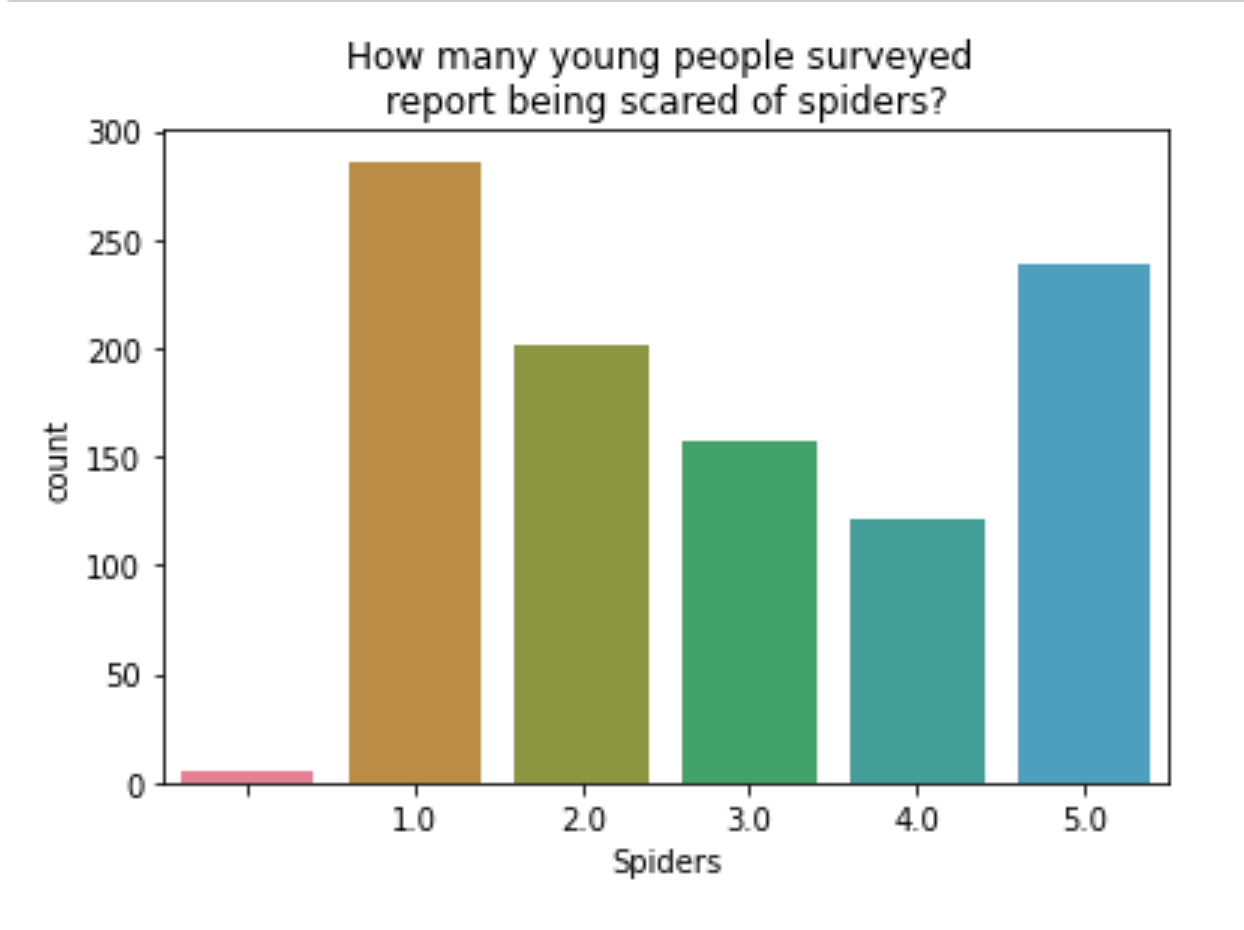
In this exercise, we’ll look at the responses to a survey sent out to young people. Our primary question here is: how many young people surveyed report being scared of spiders? Survey participants were asked to agree or disagree with the statement “I am afraid of spiders”. Responses vary from 1 to 5, where 1 is “Strongly disagree” and 5 is “Strongly agree”.
import numpy as np

data = np.loadtxt('fear_survey.txt',
delimiter='\\n', dtype=str)

df = pd.DataFrame(data)
fear_survey = df[0].str.split(',',
 expand=True)

# Promote 1st row to column headers
fear_survey.columns = fear_survey.iloc[0]
fear_survey.drop(fear_survey.index[1])

# Drop duplicate header row and index columns
fear_survey.drop(index=0, inplace=True)

fear_survey.drop(
columns=fear_survey.columns[0:2],
axis=1, inplace=True)

print(fear_survey.head())
0 Music Techno Movies History Mathematics Pets Spiders Loneliness  \
1   5.0    1.0    5.0     1.0         3.0  4.0     1.0        3.0
2   4.0    1.0    5.0     1.0         5.0  5.0     1.0        2.0
3   5.0    1.0    5.0     1.0         5.0  5.0     1.0        5.0
4   5.0    2.0    5.0     4.0         4.0  1.0     5.0        5.0
5   5.0    2.0    5.0     3.0         2.0  1.0     1.0        3.0

0 Parents' advice   Internet usage Finances   Age Siblings  Gender  \
1             4.0  few hours a day      3.0  20.0      1.0  female
2             2.0  few hours a day      3.0  19.0      2.0  female
3             3.0  few hours a day      2.0  20.0      2.0  female
4             2.0  most of the day      2.0  22.0      1.0  female
5             3.0  few hours a day      4.0  20.0      1.0  female

0 Village - town
1        village
2           city
3           city
4           city
5        village
# Create a count plot with "Spiders" on the x-axis
fear_survey = fear_survey.sort_values(
by = 'Spiders')

sns.countplot(data=fear_survey, x='Spiders')

# Display the plot
plt.title(
'How many young people surveyed \n
report being scared of spiders?')

plt.show()
Hue and scatter plots
In the prior section, we learned how hue allows us to easily make subgroups within Seaborn plots. Let’s try it out by exploring data from students in secondary school. We have a lot of information about each student like their age, where they live, their study habits and their extracurricular activities.
For now, we’ll look at the relationship between the number of absences they have in school and their final grade in the course, segmented by where the student lives (rural vs. urban area).
data = np.loadtxt('student_data.txt',
 delimiter='\\n', dtype=str)

df = pd.DataFrame(data)
student_data = df[0].str.split(',',
 expand=True)

# Promote 1st row to column headers
student_data.columns = student_data.iloc[0]
student_data.drop(student_data.index[1])

# Drop duplicate header row and index columns
student_data.drop(index=0, inplace=True)

student_data.drop(
columns=student_data.columns[0:1],
axis=1, inplace=True)

# Convert dtypes
student_data["age"] = pd.to_numeric(student_data["age"])
student_data["Medu"] = pd.to_numeric(student_data["Medu"])
student_data["Fedu"] = pd.to_numeric(student_data["Fedu"])
student_data["traveltime"] = pd.to_numeric(student_data["traveltime"])
student_data["failures"] = pd.to_numeric(student_data["failures"])
student_data["goout"] = pd.to_numeric(student_data["goout"])
student_data["Dalc"] = pd.to_numeric(student_data["Dalc"])
student_data["Walc"] = pd.to_numeric(student_data["Walc"])
student_data["health"] = pd.to_numeric(student_data["health"])
student_data["absences"] = pd.to_numeric(student_data["absences"])
student_data["G1"] = pd.to_numeric(student_data["G1"])
student_data["G2"] = pd.to_numeric(student_data["G2"])
student_data["G3"] = pd.to_numeric(student_data["G3"])
student_data["famrel"] = pd.to_numeric(student_data["famrel"])

print(student_data.head())

# Set the style to "white"
sns.set_style('white')

# Create a scatter plot of absences vs. final grade
sns.scatterplot(data=student_data, x="absences", y="G3", hue='location', hue_order=['Rural', 'Urban'])

# Show plot
plt.title('absences vs. final grade')
plt.show()
0 school sex  age famsize Pstatus  Medu  Fedu  traveltime  failures schoolsup  \
1     GP   F   18     GT3       A     4     4           2         0       yes
2     GP   F   17     GT3       T     1     1           1         0        no
3     GP   F   15     LE3       T     1     1           1         3       yes
4     GP   F   15     GT3       T     4     2           1         0        no
5     GP   F   16     GT3       T     3     3           1         0        no

0  ... goout Dalc Walc health absences  G1  G2  G3 location     study_time
1  ...     4    1    1      3        6   5   6   6    Urban   2 to 5 hours
2  ...     3    1    1      3        4   5   5   6    Urban   2 to 5 hours
3  ...     2    2    3      3       10   7   8  10    Urban   2 to 5 hours
4  ...     2    1    1      5        2  15  14  15    Urban  5 to 10 hours
5  ...     2    1    2      5        4   6  10  10    Urban   2 to 5 hours

[5 rows x 29 columns]

Hue and count plots
Let’s continue exploring our dataset from students in secondary school by looking at a new variable. The “school” column indicates the initials of which school the student attended – either “GP” or “MS”.
In the last section, we created a scatter plot where the plot points were colored based on whether the student lived in an urban or rural area. How many students live in urban vs. rural areas, and does this vary based on what school the student attends? Let’s make a count plot with subgroups to find out.
# Create a dictionary mapping subgroup values to colors
palette_colors = {'Rural': "green", 'Urban': "blue"}

# Create a count plot of school with location subgroups
sns.countplot(data=student_data, x='school', hue='location', palette=palette_colors)

# Display plot
plt.title('school type vs. count of students, by location')
plt.show()

Introduction to relational plots and subplots
Creating subplots with col and row
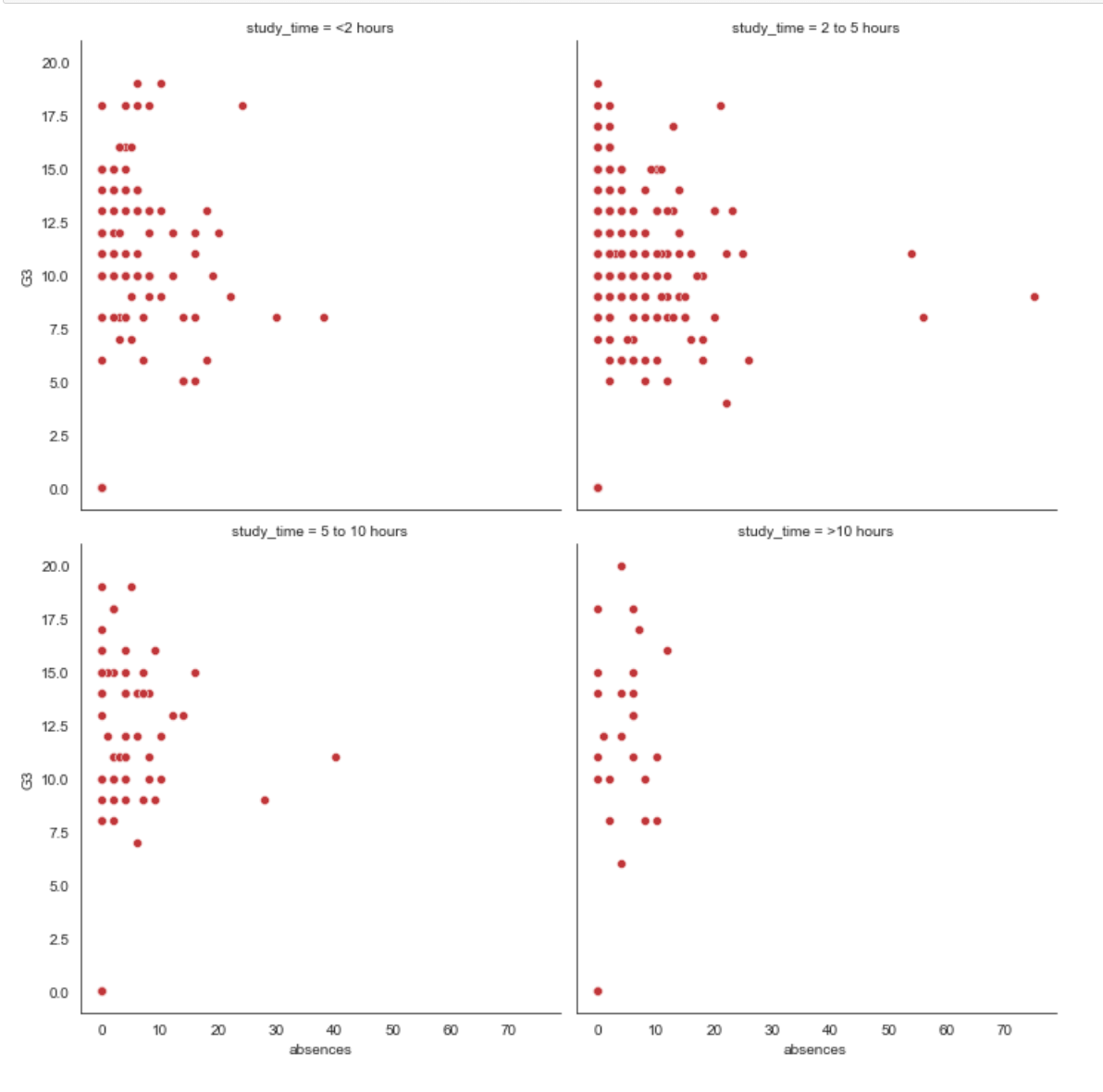
We’ve seen in prior exercises that students with more absences (“absences“) tend to have lower final grades (“G3“). Does this relationship hold regardless of how much time students study each week?
To answer this, we’ll look at the relationship between the number of absences that a student has in school and their final grade in the course, creating separate subplots based on each student’s weekly study time (“study_time“).
# Change to make subplots based on study time
sns.relplot(data=student_data,
    x="absences",
    y="G3",
    col='study_time',
    kind="scatter",
    col_order=['<2 hours', '2 to 5 hours', '5 to 10 hours', '>10 hours'],
    col_wrap=2)

# Show plot
plt.show()
Creating two-factor subplots
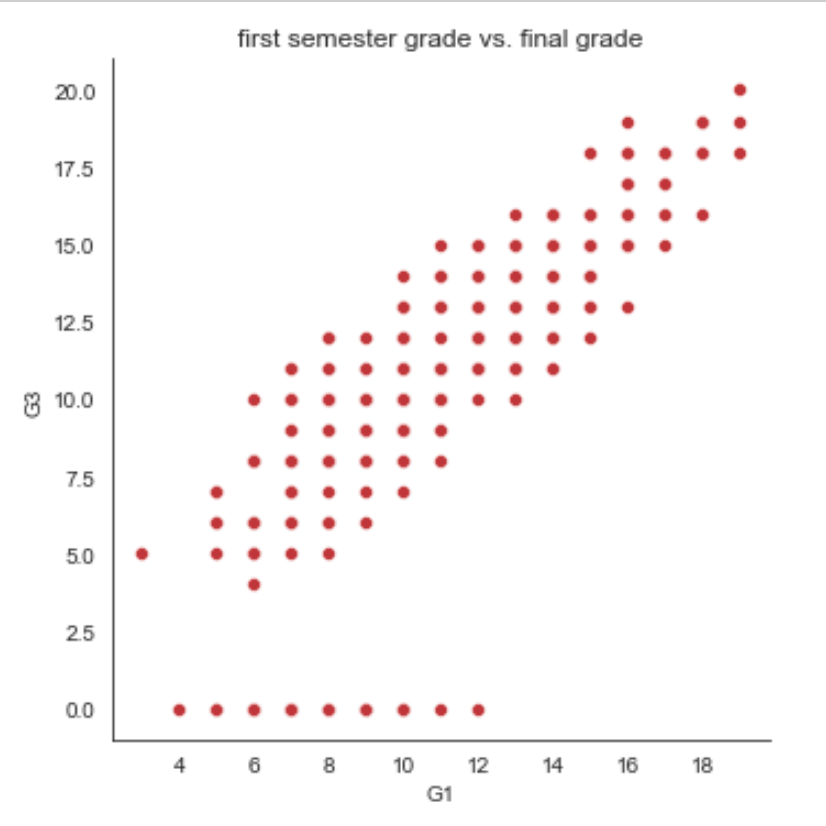
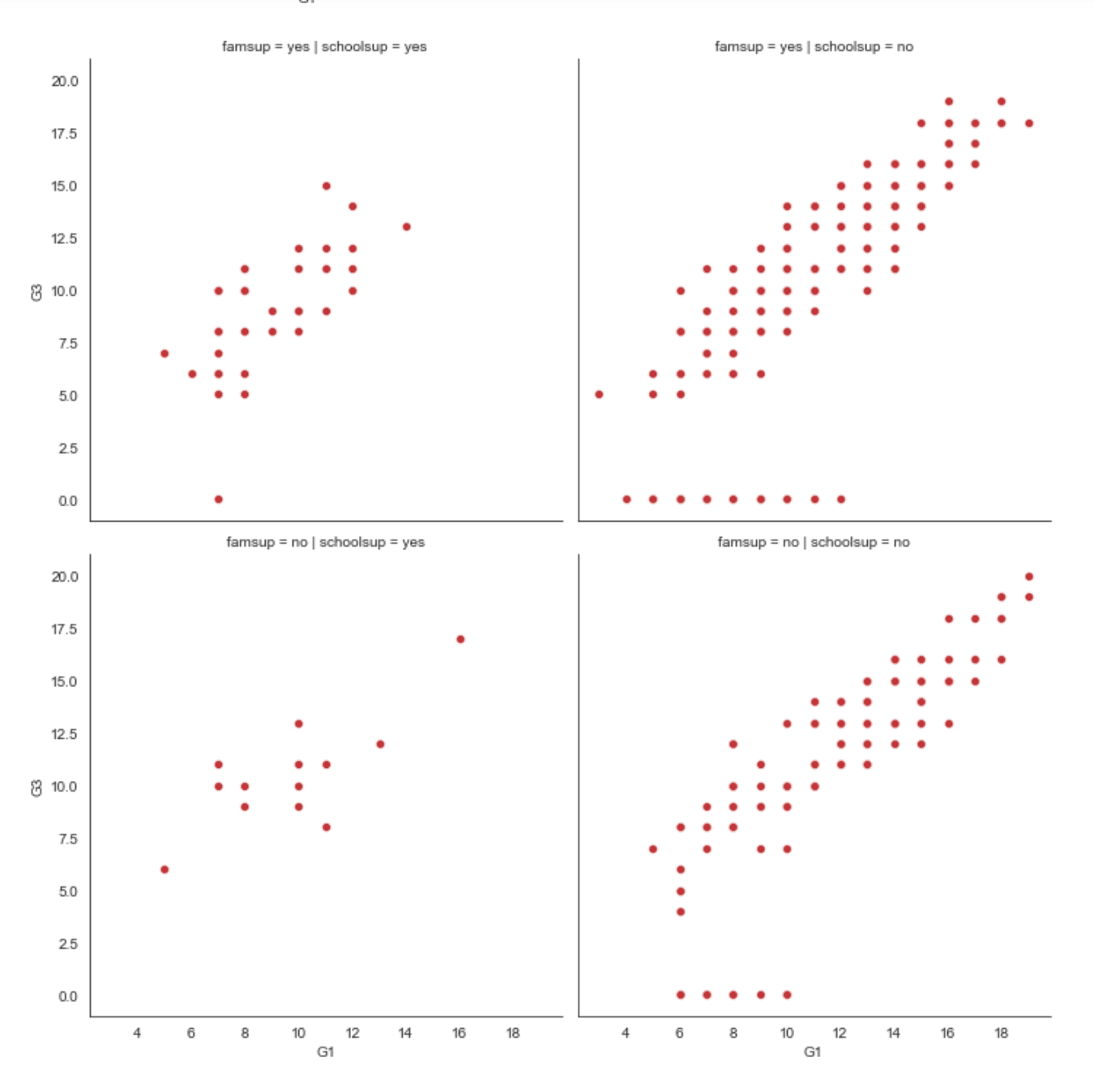
Let’s continue looking at the student_data dataset of students in secondary school. Here, we want to answer the following question: does a student’s first semester grade (“G1“) tend to correlate with their final grade (“G3“)?
There are many aspects of a student’s life that could result in a higher or lower final grade in the class. For example, some students receive extra educational support from their school (“schoolsup“) or from their family (“famsup“), which could result in higher grades. Let’s try to control for these two factors by creating subplots based on whether the student received extra educational support from their school or family.
# Create a scatter plot of G1 vs. G3
sns.relplot(data=student_data, kind='scatter', x='G1', y='G3')
# Show plot
plt.title('first semester grade vs. final grade')
plt.show()


# Adjust further to add subplots based on family support
sns.relplot(x="G1", y="G3",
            data=student_data,
            kind="scatter",
            col="schoolsup",
            col_order=["yes", "no"], row='famsup', row_order=['yes', 'no'])

# Show plot
plt.show()
Changing the size of scatter plot points
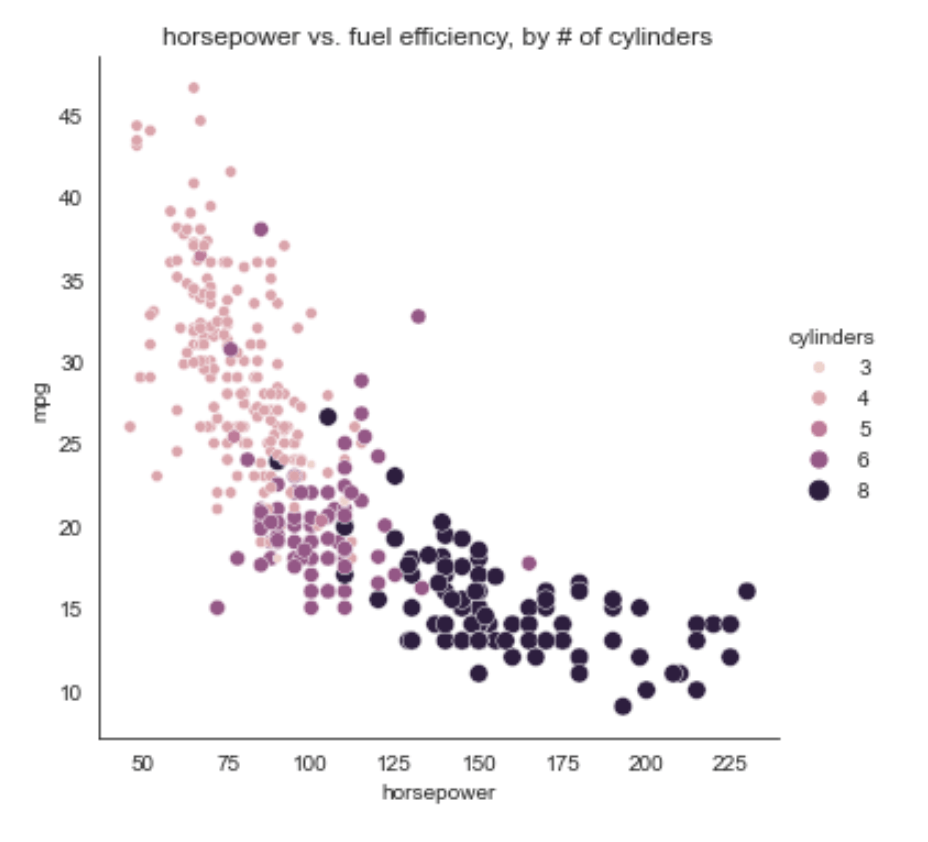
In this exercise, we’ll explore Seaborn’s mpg dataset, which contains one row per car model and includes information such as the year the car was made, the number of miles per gallon (“M.P.G.“) it achieves, the power of its engine (measured in “horsepower“), and its country of origin.
What is the relationship between the power of a car’s engine (“horsepower“) and its fuel efficiency (“mpg“)? And how does this relationship vary by the number of cylinders (“cylinders“) the car has? Let’s find out.
mpg = pd.read_csv('mpg.csv', index_col=0)
print(mpg.head())
    mpg  cylinders  displacement  horsepower  weight  acceleration  \
0  18.0          8         307.0       130.0    3504          12.0
1  15.0          8         350.0       165.0    3693          11.5
2  18.0          8         318.0       150.0    3436          11.0
3  16.0          8         304.0       150.0    3433          12.0
4  17.0          8         302.0       140.0    3449          10.5

   model_year origin                       name
0          70    usa  chevrolet chevelle malibu
1          70    usa          buick skylark 320
2          70    usa         plymouth satellite
3          70    usa              amc rebel sst
4          70    usa                ford torino
# Create scatter plot of horsepower vs. mpg
sns.relplot(data=mpg,
           x='horsepower',y='mpg',
           size='cylinders', hue='cylinders',
           kind='scatter')

# Show plot
plt.title('horsepower vs. fuel efficiency, by # of cylinders')
plt.show()
Changing the style of scatter plot points
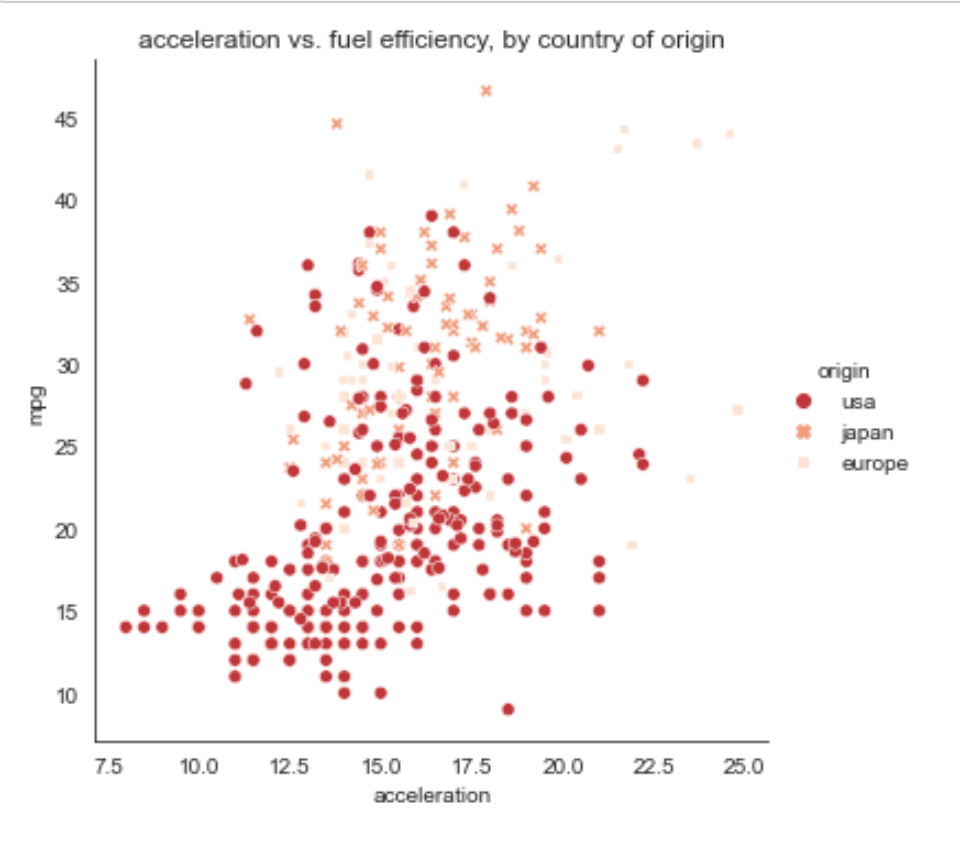
Let’s continue exploring Seaborn’s mpg dataset by looking at the relationship between how fast a car can accelerate (“acceleration“) and its fuel efficiency (“mpg“). Do these properties vary by country of origin (“origin“)?
Note that the “acceleration” variable is the time to accelerate from 0 to 60 miles per hour, in seconds. Higher values indicate slower acceleration.
# Create a scatter plot of acceleration vs. mpg
sns.relplot(data=mpg,
           x='acceleration', y='mpg',
           style='origin',
           hue='origin',
           kind='scatter')

# Show plot
plt.title('acceleration vs. fuel efficiency, by country of origin')
plt.show()
Interpreting line plots
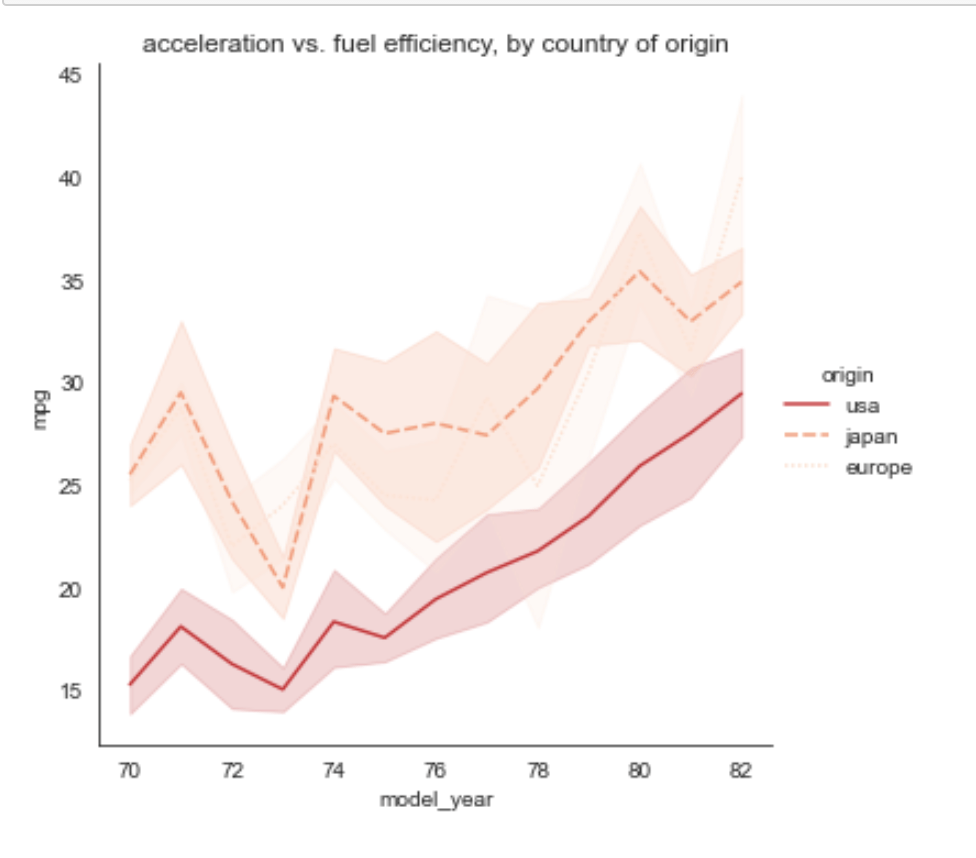
In this exercise, we’ll continue to explore Seaborn’s mpg dataset, which contains one row per car model and includes information such as the year the car was made (“model_year“), its fuel efficiency (measured in “miles per gallon” or “mpg“), and its country of origin (USA, Europe, or Japan).
How has the average miles per gallon achieved by these cars changed over time? Let’s use line plots to find out!
# Create line plot
sns.relplot(data=mpg,
           x='model_year',
           y='mpg',
           kind='line',
           style='origin',
           hue='origin')

# Show plot
plt.title('acceleration vs. fuel efficiency, by country of origin')
plt.show()
Visualizing standard deviation with line plots
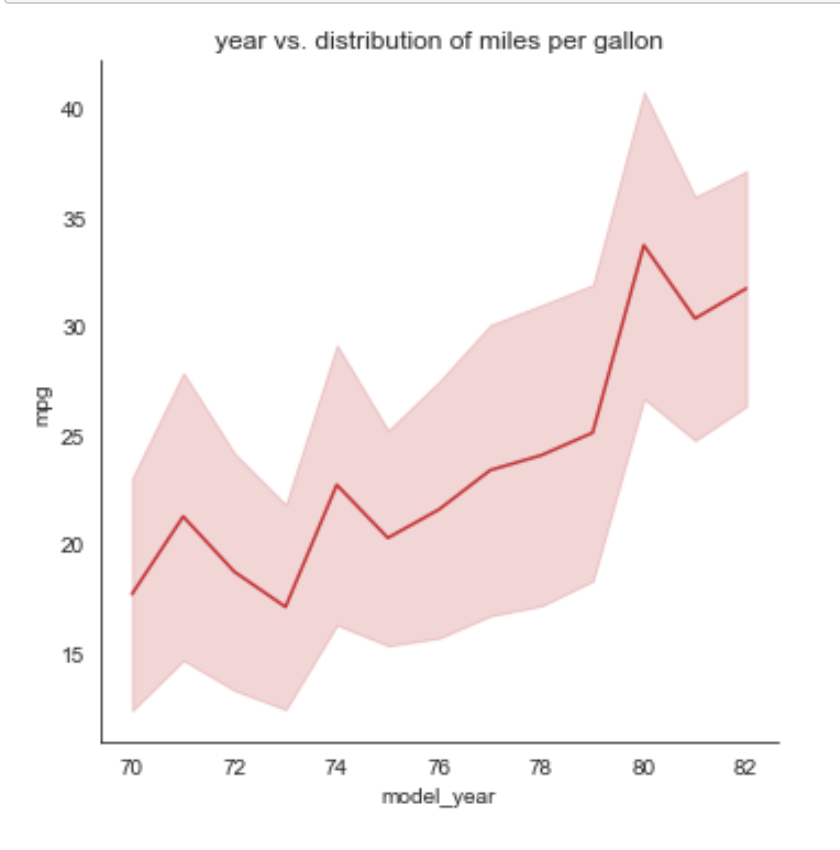
In the last exercise, we looked at how the average miles per gallon achieved by cars has changed over time. Now let’s use a line plot to visualize how the distribution of miles per gallon has changed over time.
sns.relplot(data=mpg
           ,x='model_year',y='mpg'
           ,kind='line', ci='sd')

# Show plot
plt.title('year vs. distribution of miles per gallon')
plt.show()
Plotting subgroups in line plots
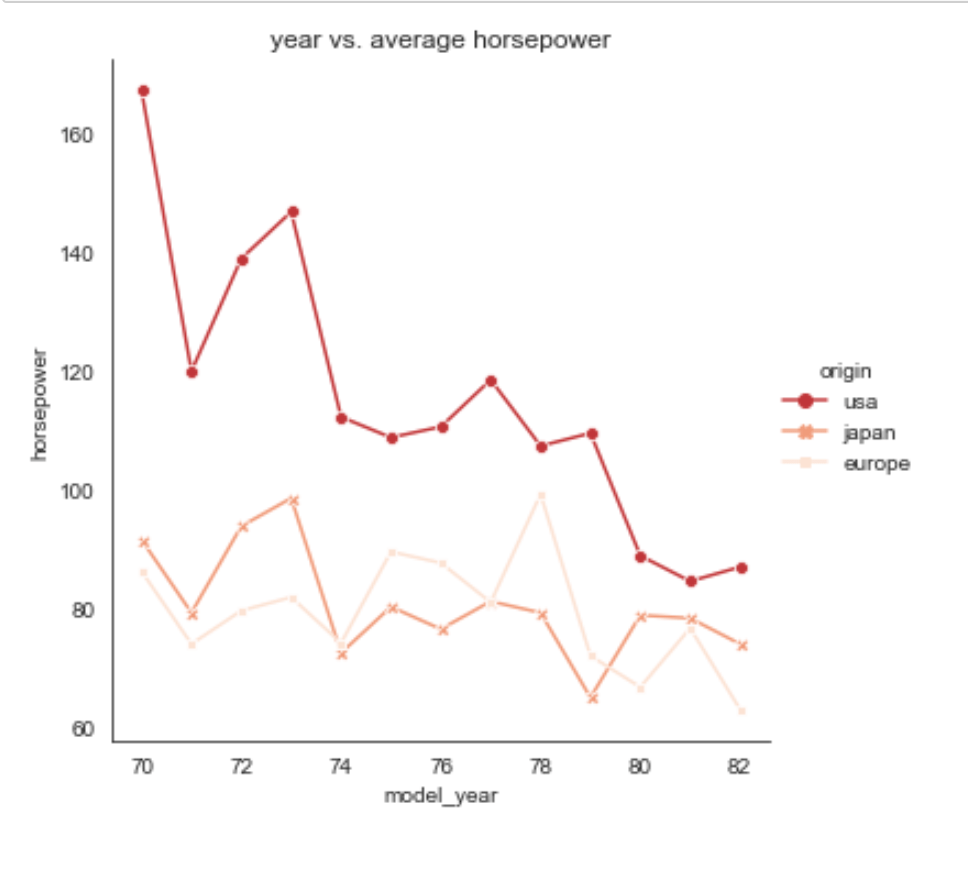
Let’s continue to look at the mpg dataset. We’ve seen that the average miles per gallon for cars has increased over time, but how has the average horsepower for cars changed over time? And does this trend differ by country of origin?
sns.relplot(data=mpg
           ,x='model_year',y='horsepower'
           ,style='origin', hue='origin'
           ,kind='line'
           ,ci=None
           ,dashes=False
           ,markers=True)

# Show plot
plt.title('year vs. average horsepower')
plt.show()
Count plots
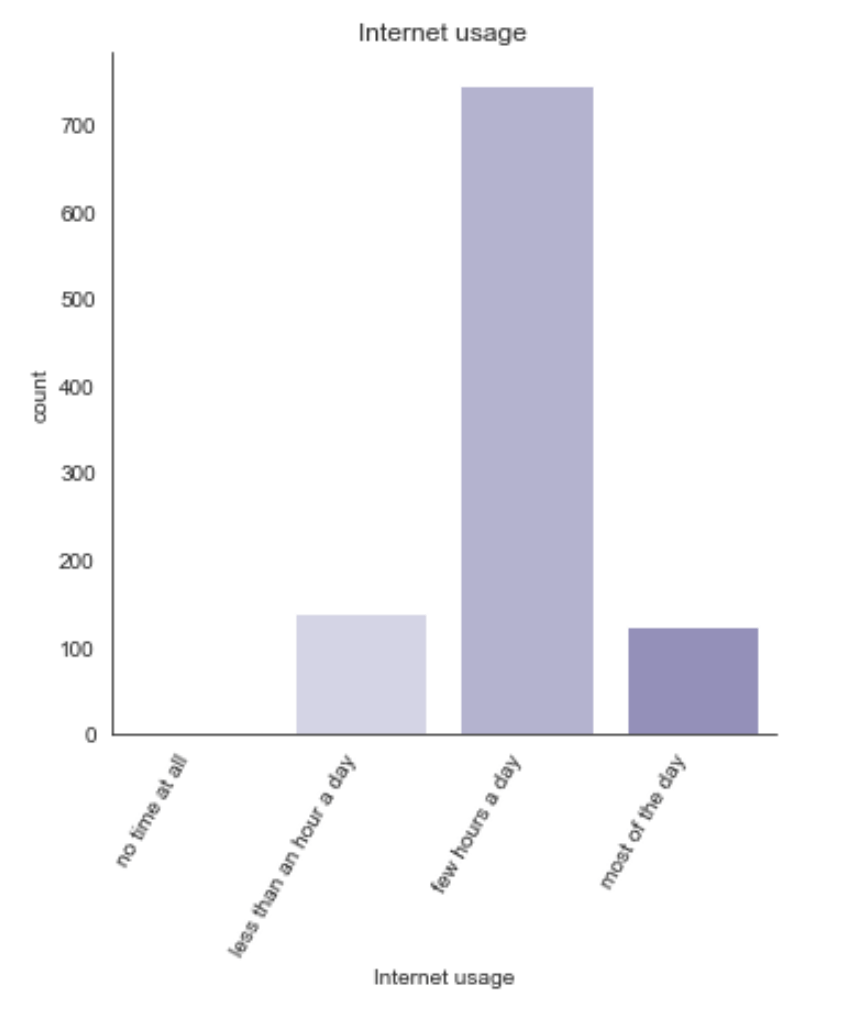
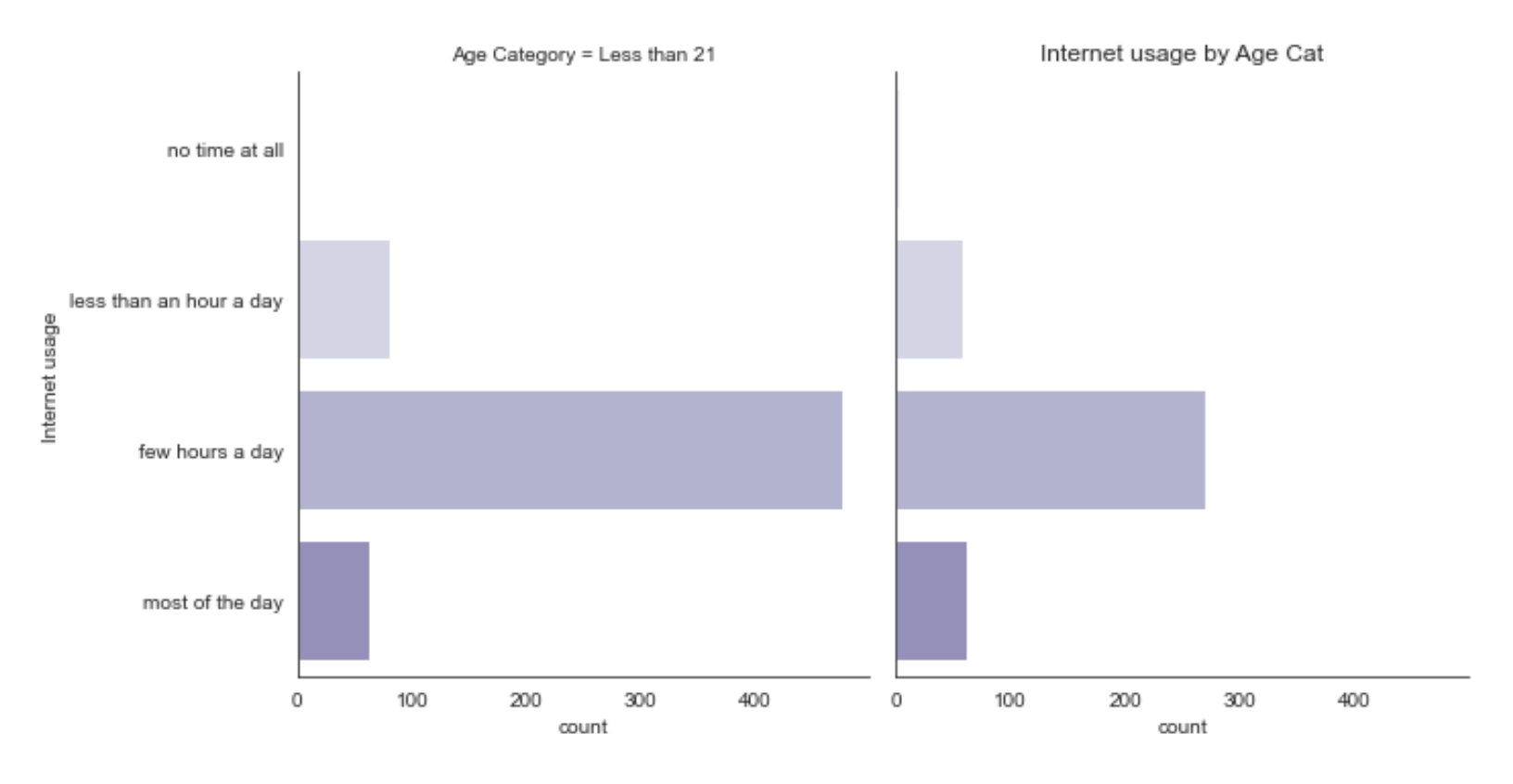
In this exercise, we’ll return to exploring our dataset that contains the responses to a survey sent out to young people. We might suspect that young people spend a lot of time on the internet, but how much do they report using the internet each day? Let’s use a count plot to break down the number of survey responses in each category and then explore whether it changes based on age.
As a reminder, to create a count plot, we’ll use the catplot() function and specify the name of the categorical variable to count on x, the pandas DataFrame to use data, and the type of plot to "count".
# Read Updated Version of fear_survey
data = np.loadtxt('survey_data.txt', delimiter='\\n', dtype=str)
df = pd.DataFrame(data)
survey_data = df[0].str.split(',', expand=True)

# Promote 1st row to column headers
survey_data.columns = survey_data.iloc[0]
survey_data.drop(survey_data.index[1])

# Drop duplicate header row and index columns
survey_data.drop(index=0, inplace=True)
survey_data.drop(columns=survey_data.columns[0:1], axis=1, inplace=True)

print(survey_data.head(3))

# Convert dtypes
survey_data["Music"] = pd.to_numeric(survey_data["Music"])
survey_data["Techno"] = pd.to_numeric(survey_data["Techno"])
survey_data["Movies"] = pd.to_numeric(survey_data["Movies"])
survey_data["History"] = pd.to_numeric(survey_data["History"])
survey_data["Mathematics"] = pd.to_numeric(survey_data["Mathematics"])
survey_data["Pets"] = pd.to_numeric(survey_data["Pets"])
survey_data["Spiders"] = pd.to_numeric(survey_data["Spiders"])
survey_data["Loneliness"] = pd.to_numeric(survey_data["Loneliness"])
survey_data["Parents' advice"] = pd.to_numeric(survey_data["Parents' advice"])
survey_data["Finances"] = pd.to_numeric(survey_data["Finances"])
survey_data["Age"] = pd.to_numeric(survey_data["Age"])
survey_data["Siblings"] = pd.to_numeric(survey_data["Siblings"])
0 Music Techno Movies History Mathematics Pets Spiders Loneliness  \
1   5.0    1.0    5.0     1.0         3.0  4.0     1.0        3.0
2   4.0    1.0    5.0     1.0         5.0  5.0     1.0        2.0
3   5.0    1.0    5.0     1.0         5.0  5.0     1.0        5.0

0 Parents' advice   Internet usage Finances   Age Siblings  Gender  \
1             4.0  few hours a day      3.0  20.0      1.0  female
2             2.0  few hours a day      3.0  19.0      2.0  female
3             3.0  few hours a day      2.0  20.0      2.0  female

0 Village - town  Age Category
1        village  Less than 21
2           city  Less than 21
3           city  Less than 21
print(pd.unique(survey_data['Internet usage']))
['few hours a day' 'most of the day' 'less than an hour a day'
 'no time at all']
bar_order = ['no time at all','less than an hour a day','few hours a day','most of the day']
# Change the color palette to "Purples"
sns.set_palette(palette='Purples')

# Create count plot of internet usage
sns.catplot(data=survey_data
                ,x='Internet usage'
                ,kind='count'
                ,order=bar_order)

#rotate x-axis labels
plt.xticks(rotation=60, ha='right')

# Show plot
plt.title('Internet usage')
plt.show()

sns.catplot(data=survey_data
                ,y='Internet usage'
                ,kind='count'
                ,order=bar_order
                ,col='Age Category')

# Show plot
plt.title('Internet usage by Age Cat')
plt.show()
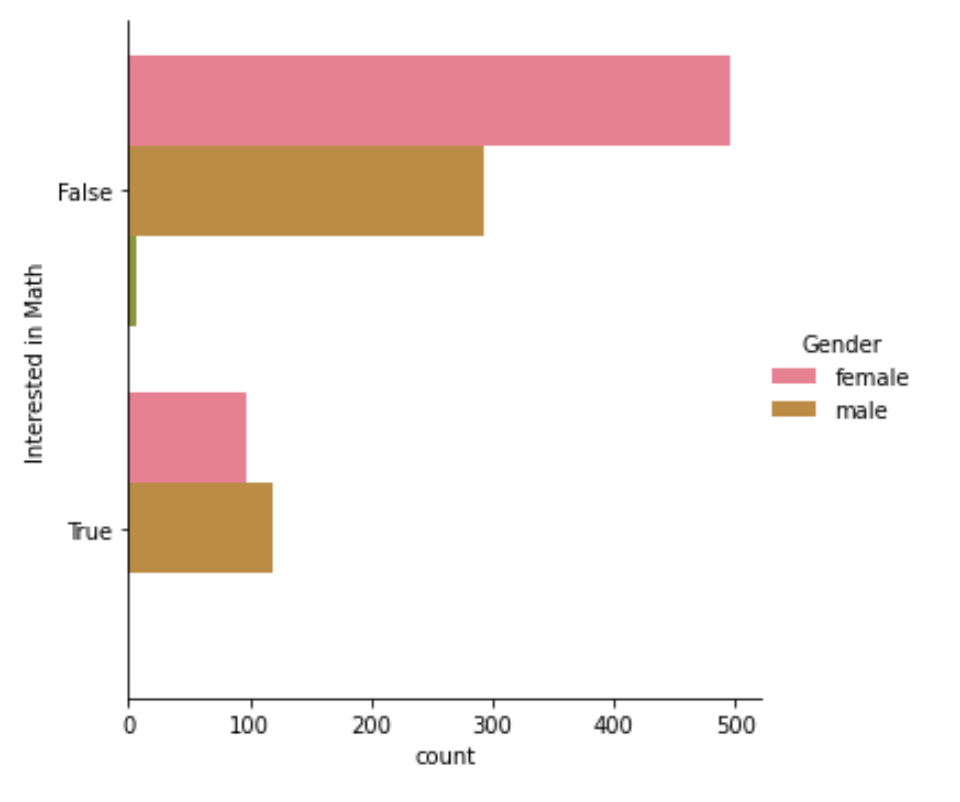
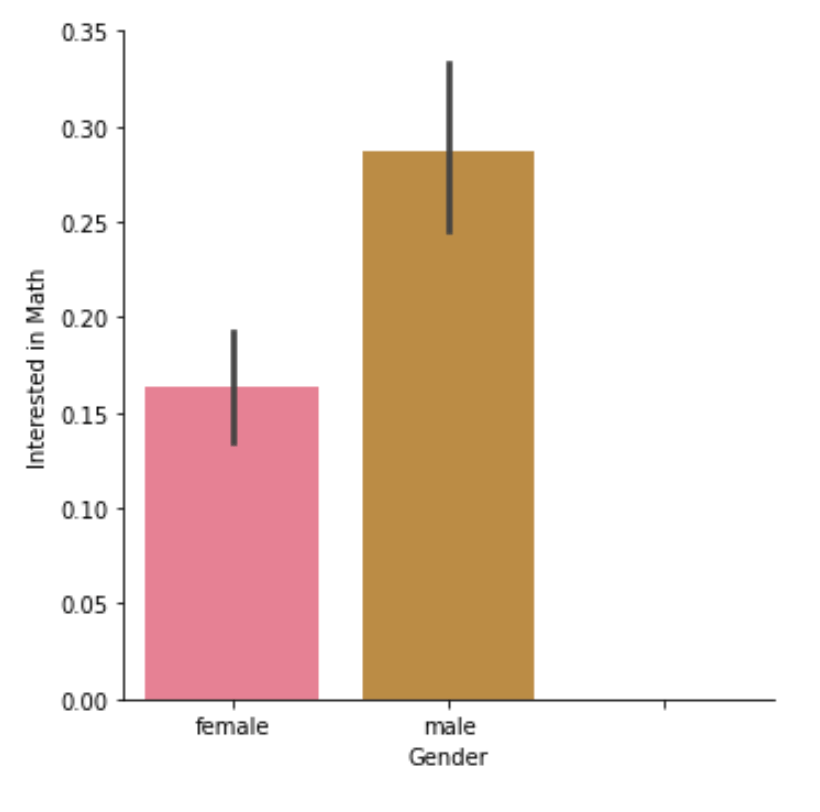
Let’s continue exploring the responses to a survey sent out to young people. The variable "Interested in Math" is True if the person reported being interested or very interested in mathematics, and False otherwise. What percentage of young people report being interested in math, and does this vary based on gender? Let’s use a bar plot to find out.
As a reminder, we’ll create a bar plot using the catplot() function, providing the name of categorical variable to put on the x-axis, the name of the quantitative variable to summarize on the y-axis, the pandas DataFrame to use data, and the type of categorical plot to bar.
# Read Updated Version of fear_survey
data = np.loadtxt('survey_data2.txt', delimiter='\\n', dtype=str)
df = pd.DataFrame(data)
survey_data = df[0].str.split(',', expand=True)

# Promote 1st row to column headers
survey_data.columns = survey_data.iloc[0]
survey_data.drop(survey_data.index[1])

# Drop duplicate header row and index columns
survey_data.drop(index=0, inplace=True)
survey_data.drop(columns=survey_data.columns[0:1], axis=1, inplace=True)

# Convert dtypes
survey_data["Music"] = pd.to_numeric(survey_data["Music"])
survey_data["Techno"] = pd.to_numeric(survey_data["Techno"])
survey_data["Movies"] = pd.to_numeric(survey_data["Movies"])
survey_data["History"] = pd.to_numeric(survey_data["History"])
survey_data["Mathematics"] = pd.to_numeric(survey_data["Mathematics"])
survey_data["Pets"] = pd.to_numeric(survey_data["Pets"])
survey_data["Spiders"] = pd.to_numeric(survey_data["Spiders"])
survey_data["Loneliness"] = pd.to_numeric(survey_data["Loneliness"])
survey_data["Parents' advice"] = pd.to_numeric(survey_data["Parents' advice"])
survey_data["Finances"] = pd.to_numeric(survey_data["Finances"])
survey_data["Age"] = pd.to_numeric(survey_data["Age"])
survey_data["Siblings"] = pd.to_numeric(survey_data["Siblings"])

dmap = {'nan': 0,'False':0, 'True': 1 }
survey_data["Interested in Math"] = survey_data["Interested in Math"].map(dmap)
survey_data["Interested in Math"] = survey_data["Interested in Math"].astype('bool')

print(survey_data.head())
0  Music  Techno  Movies  History  Mathematics  Pets  Spiders  Loneliness  \
1    5.0     1.0     5.0      1.0          3.0   4.0      1.0         3.0
2    4.0     1.0     5.0      1.0          5.0   5.0      1.0         2.0
3    5.0     1.0     5.0      1.0          5.0   5.0      1.0         5.0
4    5.0     2.0     5.0      4.0          4.0   1.0      5.0         5.0
5    5.0     2.0     5.0      3.0          2.0   1.0      1.0         3.0

0  Parents' advice   Internet usage  Finances   Age  Siblings  Gender  \
1              4.0  few hours a day       3.0  20.0       1.0  female
2              2.0  few hours a day       3.0  19.0       2.0  female
3              3.0  few hours a day       2.0  20.0       2.0  female
4              2.0  most of the day       2.0  22.0       1.0  female
5              3.0  few hours a day       4.0  20.0       1.0  female

0 Village - town  Interested in Math
1        village               False
2           city                True
3           city                True
4           city                True
5        village               False
sns.catplot(data=survey_data
           ,y='Interested in Math'
           ,hue='Gender'
           ,kind='count')
# Create a bar plot of interest in math, separated by gender
sns.catplot(x="Gender", y="Interested in Math",
            data=survey_data, kind="bar")
Customizing bar plots
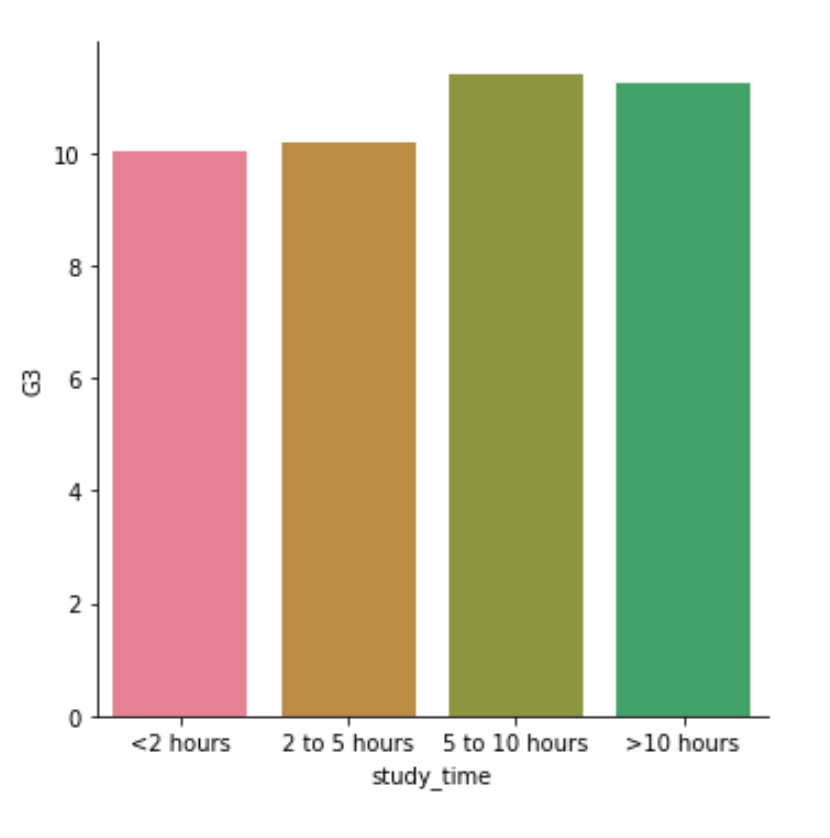
In this exercise, we’ll explore data from students in secondary school. The "study_time" variable records each student’s reported weekly study time as one of the following categories: "<2 hours", "2 to 5 hours", "5 to 10 hours", or ">10 hours". Do students who report higher amounts of studying tend to get better final grades? Let’s compare the average final grade among students in each category using a bar plot.
print(student_data.head())
0 school sex  age famsize Pstatus  Medu  Fedu  traveltime  failures schoolsup  \
1     GP   F   18     GT3       A     4     4           2         0       yes
2     GP   F   17     GT3       T     1     1           1         0        no
3     GP   F   15     LE3       T     1     1           1         3       yes
4     GP   F   15     GT3       T     4     2           1         0        no
5     GP   F   16     GT3       T     3     3           1         0        no

0  ... goout Dalc Walc health absences  G1  G2  G3 location     study_time
1  ...     4    1    1      3        6   5   6   6    Urban   2 to 5 hours
2  ...     3    1    1      3        4   5   5   6    Urban   2 to 5 hours
3  ...     2    2    3      3       10   7   8  10    Urban   2 to 5 hours
4  ...     2    1    1      5        2  15  14  15    Urban  5 to 10 hours
5  ...     2    1    2      5        4   6  10  10    Urban   2 to 5 hours

[5 rows x 29 columns]
# Create Cat Order
cat_order = ["<2 hours", "2 to 5 hours", "5 to 10 hours", ">10 hours"]

# Create a bar plot of study_time vs g3
sns.catplot(data=student_data
           ,kind='bar'
           ,x='study_time',y='G3'
           ,order=cat_order
           ,ci=None)
<seaborn.axisgrid.FacetGrid at 0x12e41a890>
Create and interpret a box plot
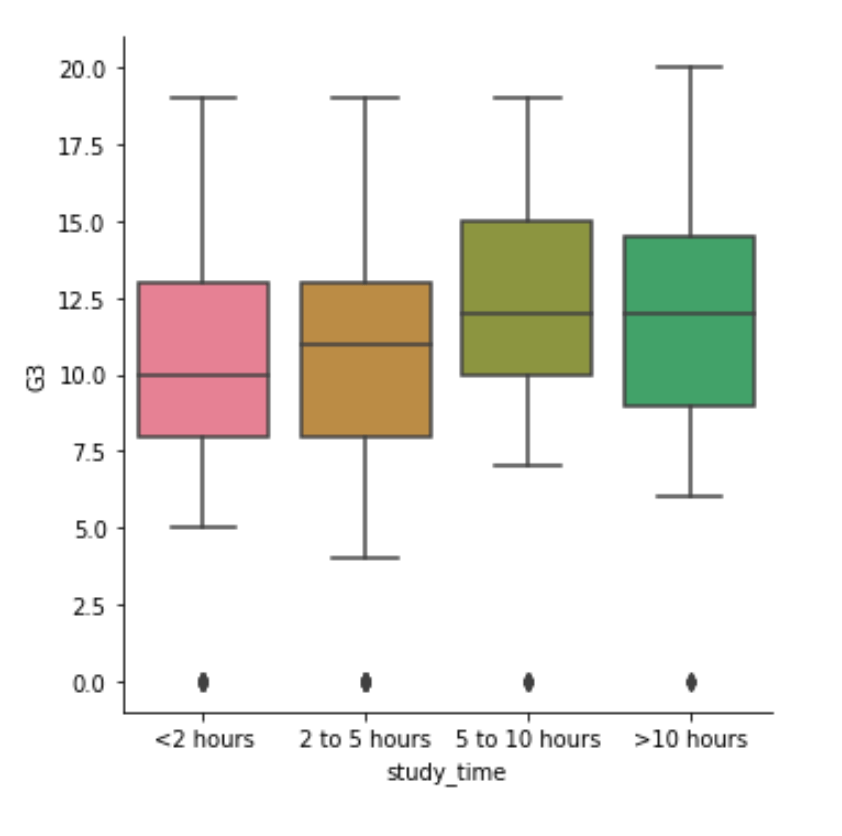
Let’s continue using the student_data dataset. In an earlier exercise, we explored the relationship between studying and final grade by using a bar plot to compare the average final grade ("G3") among students in different categories of "study_time".
In this exercise, we’ll try using a box plot look at this relationship instead. As a reminder, to create a box plot you’ll need to use the catplot() function and specify the name of the categorical variable to put on the x-axis, the name of the quantitative variable to summarize on the y-axis, the pandas DataFrame to use, and the type of plot as box.
# Specify the category ordering
study_time_order = ["<2 hours", "2 to 5 hours",
                    "5 to 10 hours", ">10 hours"]

# Create a box plot and set the order of the categories
sns.catplot(data=student_data
       ,kind='box'
       ,x='study_time',y='G3', order=study_time_order)
<seaborn.axisgrid.FacetGrid at 0x12d916200>
Omitting outliers
Now let’s use the student_data dataset to compare the distribution of final grades ("G3") between students who have internet access at home and those who don’t. To do this, we’ll use the "internet" variable, which is a binary (yes/no) indicator of whether the student has internet access at home.
Since internet may be less accessible in rural areas, we’ll add subgroups based on where the student lives. For this, we can use the "location" variable, which is an indicator of whether a student lives in an urban (“Urban”) or rural (“Rural”) location.
# Create a box plot with subgroups and omit the outliers
sns.catplot(data=student_data, kind='box'
           ,x='internet', y='G3'
           ,sym='', hue='location')
<seaborn.axisgrid.FacetGrid at 0x12d957dc0>

Adjusting the whiskers
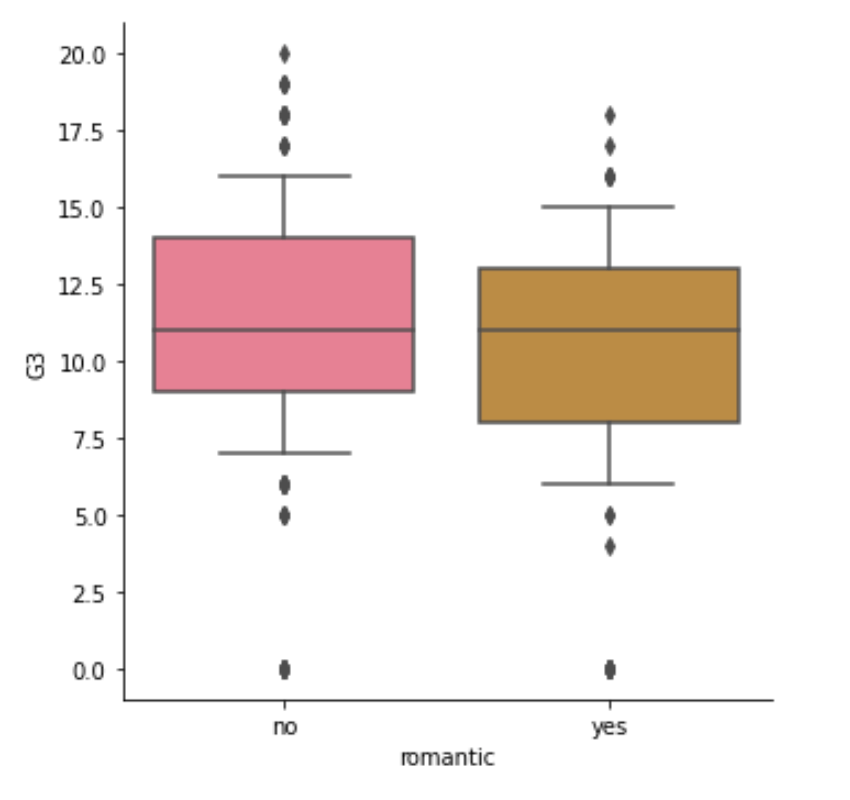
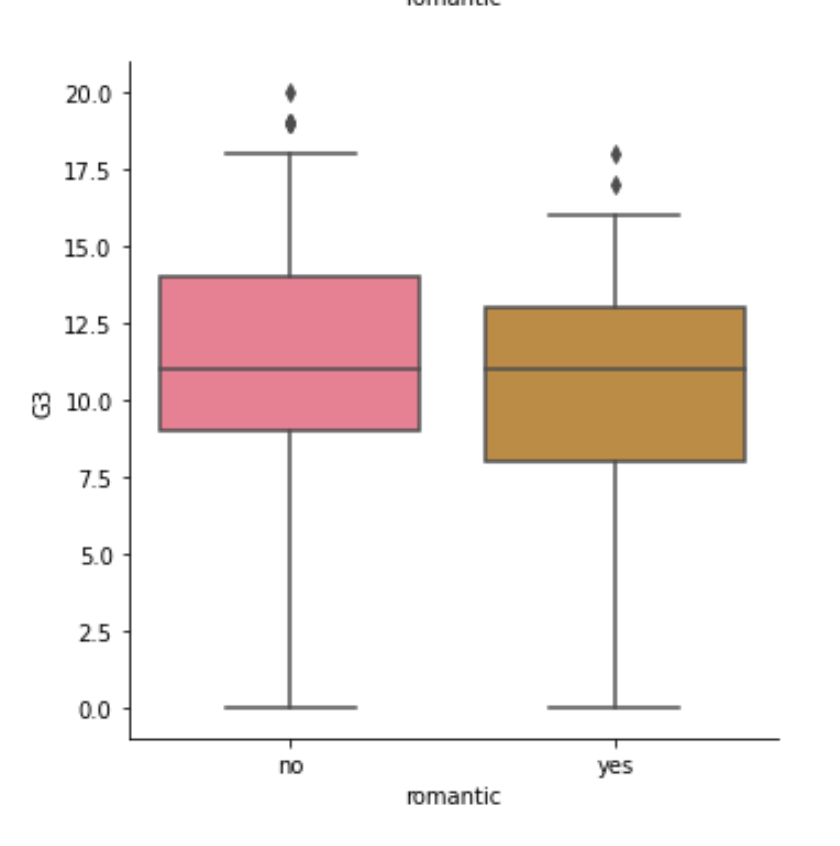
In the lesson we saw that there are multiple ways to define the whiskers in a box plot. In this set of exercises, we’ll continue to use the student_data dataset to compare the distribution of final grades ("G3") between students who are in a romantic relationship and those that are not. We’ll use the "romantic" variable, which is a yes/no indicator of whether the student is in a romantic relationship.
Let’s create a box plot to look at this relationship and try different ways to define the whiskers.
# Set the whiskers to 0.5 * IQR
sns.catplot(x="romantic", y="G3",
            data=student_data,
            kind="box", whis=0.5)

sns.catplot(x="romantic", y="G3",
            data=student_data,
            kind="box", whis=[5, 95])
<seaborn.axisgrid.FacetGrid at 0x12f57f1f0>
Customizing point plots
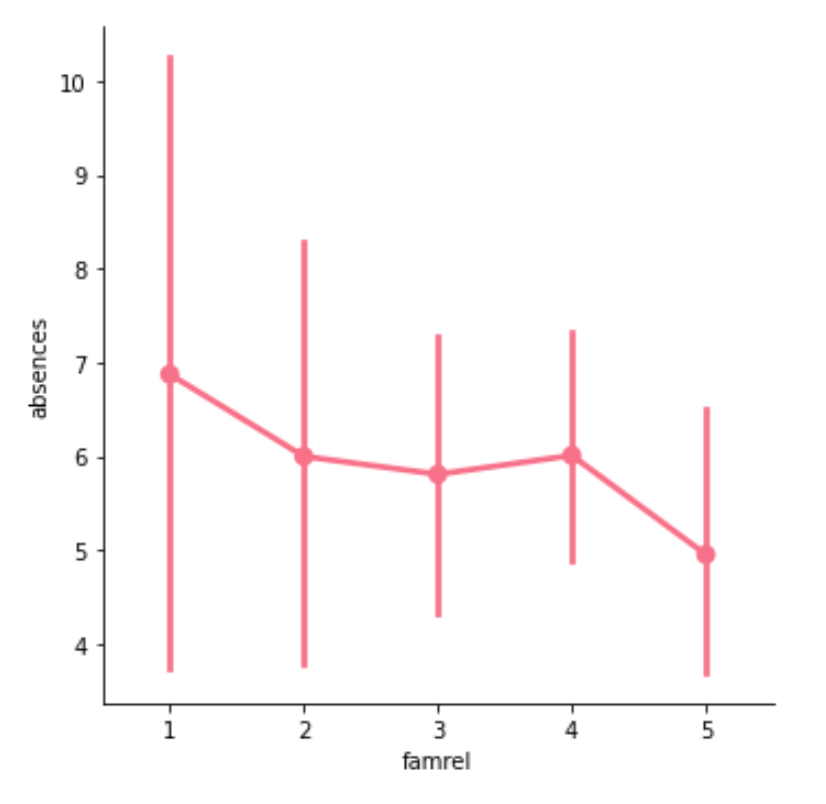
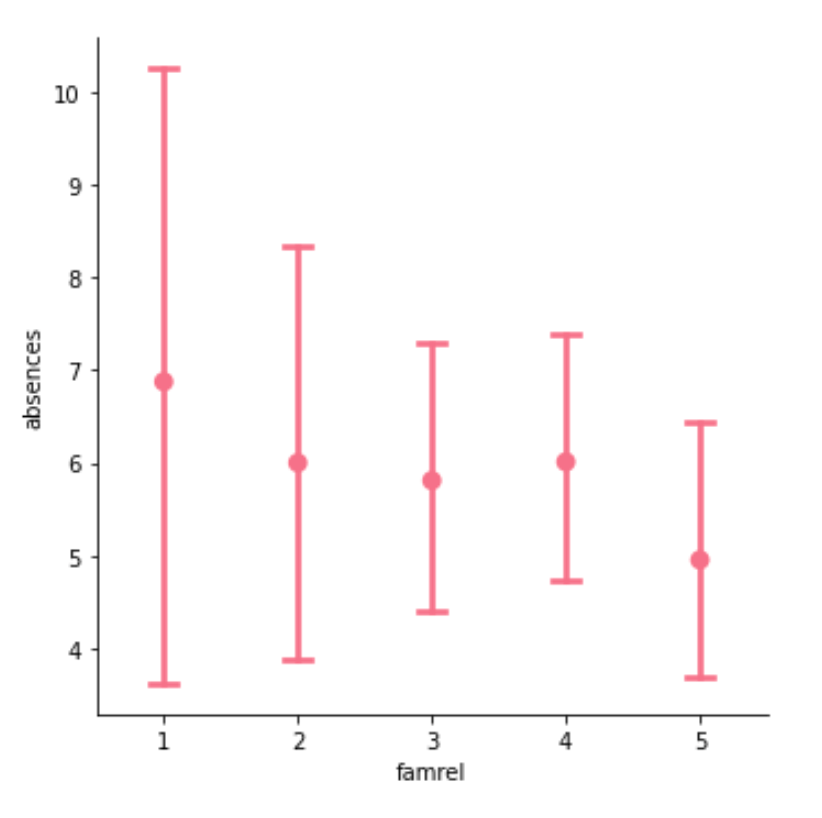
Let’s continue to look at data from students in secondary school, this time using a point plot to answer the question: does the quality of the student’s family relationship influence the number of absences the student has in school? Here, we’ll use the "famrel" variable, which describes the quality of a student’s family relationship from 1 (very bad) to 5 (very good).
As a reminder, to create a point plot, use the catplot() function and specify the name of the categorical variable to put on the x-axis, the name of the quantitative variable to summarize on the y-axis, and the type of categorical plot as "point".
# Create a point plot of family relationship vs. absences
sns.catplot(data=student_data, kind='point'
           ,x='famrel', y='absences')

# Remove the lines joining the points
sns.catplot(x="famrel", y="absences"
			,data=student_data
            ,kind="point"
            ,capsize=0.2
            ,join=False)
<seaborn.axisgrid.FacetGrid at 0x12fa4dd80>
Point plots with subgroups
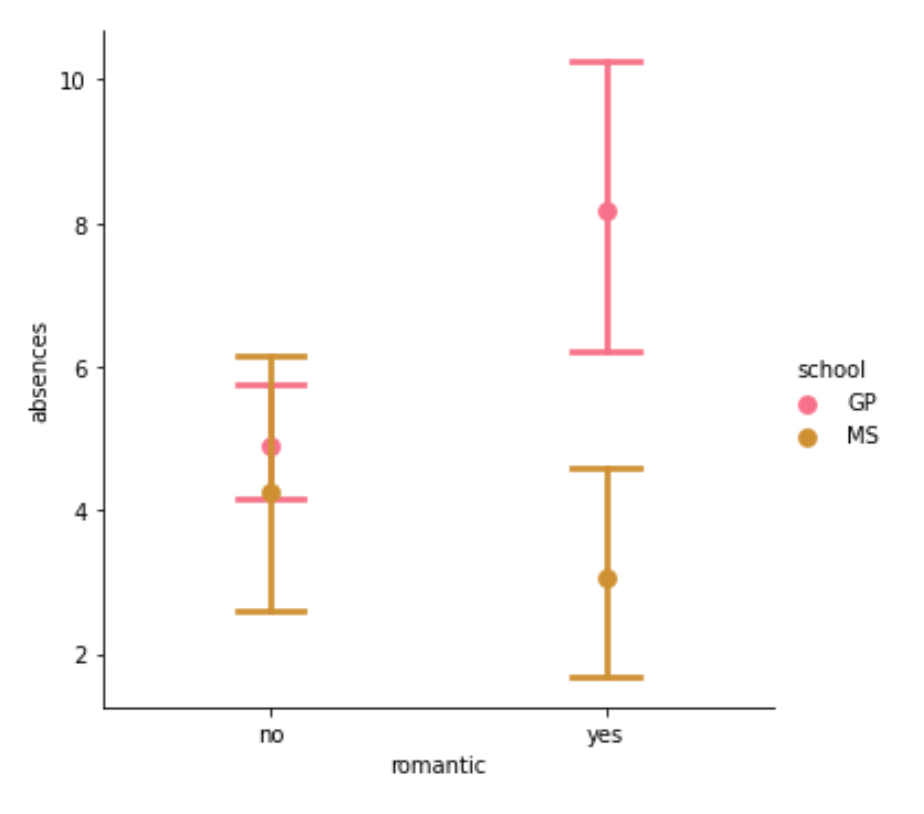
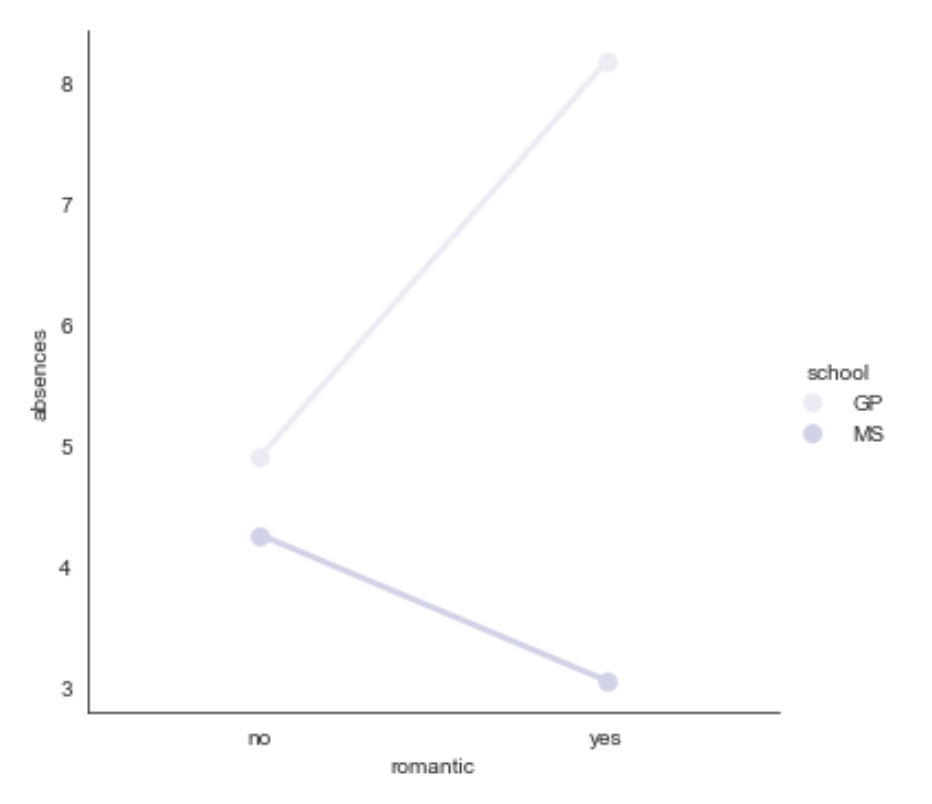
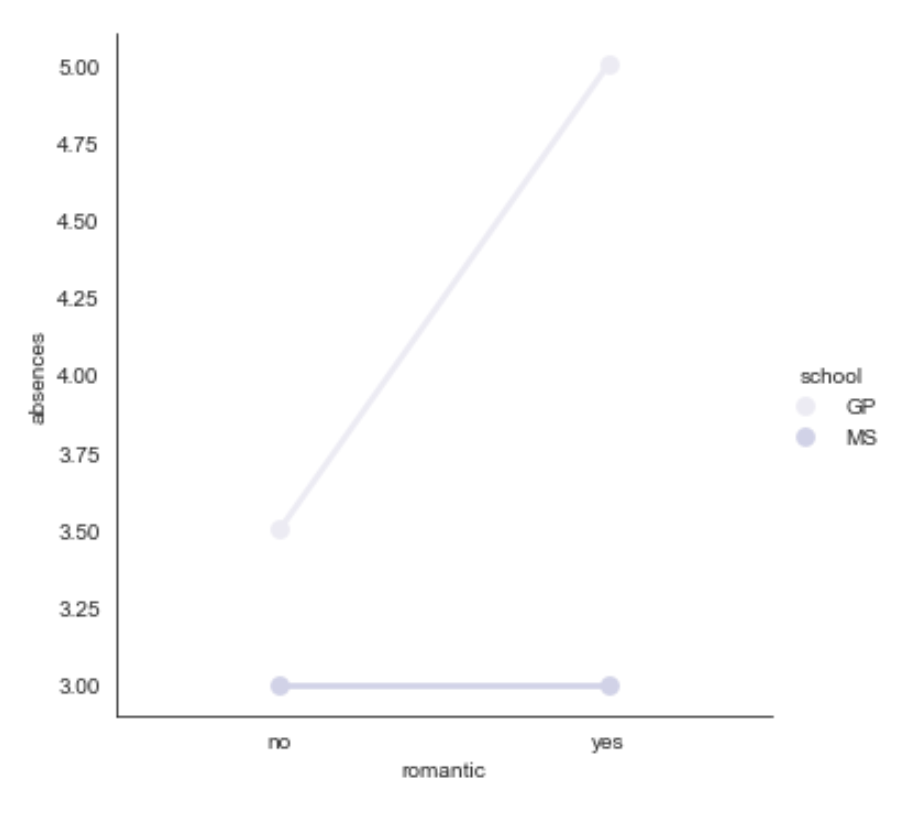
Let’s continue exploring the dataset of students in secondary school. This time, we’ll ask the question: is being in a romantic relationship associated with higher or lower school attendance? And does this association differ by which school the students attend? Let’s find out using a point plot.
# Create a point plot that uses color to create subgroups
sns.catplot(x="romantic", y="absences"
			,data=student_data
            ,kind="point"
            ,capsize=0.2
            ,join=False
            ,hue='school')
<seaborn.axisgrid.FacetGrid at 0x12fc79ed0>
# Turn off the confidence intervals for this plot
sns.catplot(x="romantic", y="absences",
			data=student_data,
            kind="point"
            ,hue="school"
            ,ci=None)
<seaborn.axisgrid.FacetGrid at 0x13088fcd0>
# Import median function from numpy
from numpy import median

# Plot the median number of absences instead of the mean
sns.catplot(x="romantic", y="absences",
            data=student_data,
            kind="point",
            hue="school",
            ci=None,
            estimator=median)
<seaborn.axisgrid.FacetGrid at 0x13088fd00>
Changing style and palette
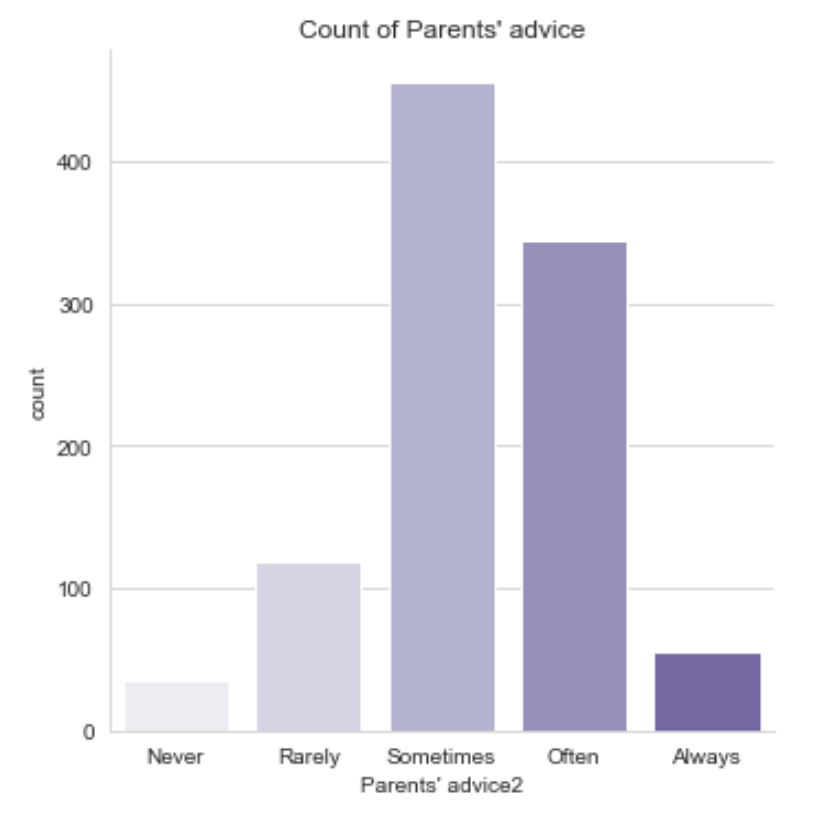
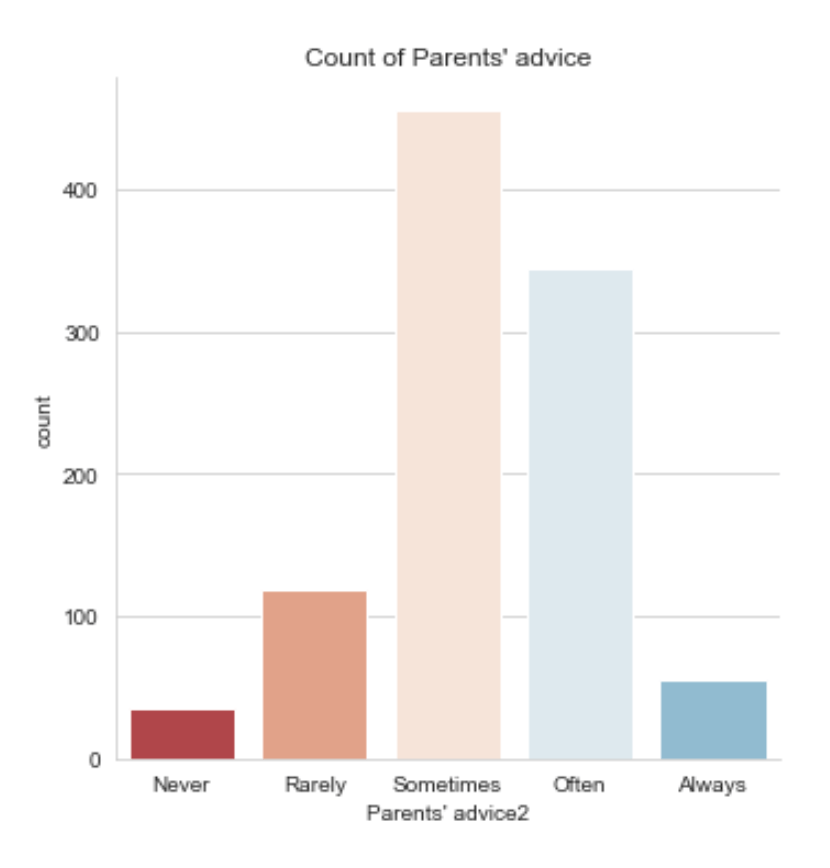
Let’s return to our dataset containing the results of a survey given to young people about their habits and preferences. Let’s find the answer to the question “How often do you listen to your parents’ advice?”. Now let’s change the style and palette to make this plot easier to interpret.
print(survey_data["Parents' advice"].unique())

survey_data["Parents' advice2"] = survey_data["Parents' advice"].map({1: 'Never', 2: 'Rarely', 3: 'Sometimes', 4: 'Often', 5: 'Always'})

print(survey_data["Parents' advice2"].unique())
[ 4.  2.  3.  1.  5. nan]
['Often' 'Rarely' 'Sometimes' 'Never' 'Always' nan]
# Create a count plot of survey responses
category_order = ["Never", "Rarely", "Sometimes",
                  "Often", "Always"]

# Set the style to "whitegrid"
sns.set_style('whitegrid')

# Change the color palette to "Purples"
sns.set_palette(palette='Purples')

sns.catplot(data=survey_data, kind='count'
           ,x="Parents' advice2"
           ,order = category_order )

# Show plot
plt.title("Count of Parents' advice")
plt.show()


# Change the color palette to "RdBu"
sns.set_palette(palette='RdBu')

sns.catplot(data=survey_data, kind='count'
           ,x="Parents' advice2"
           ,order = category_order )

# Show plot
plt.title("Count of Parents' advice")
plt.show()
Changing the scale
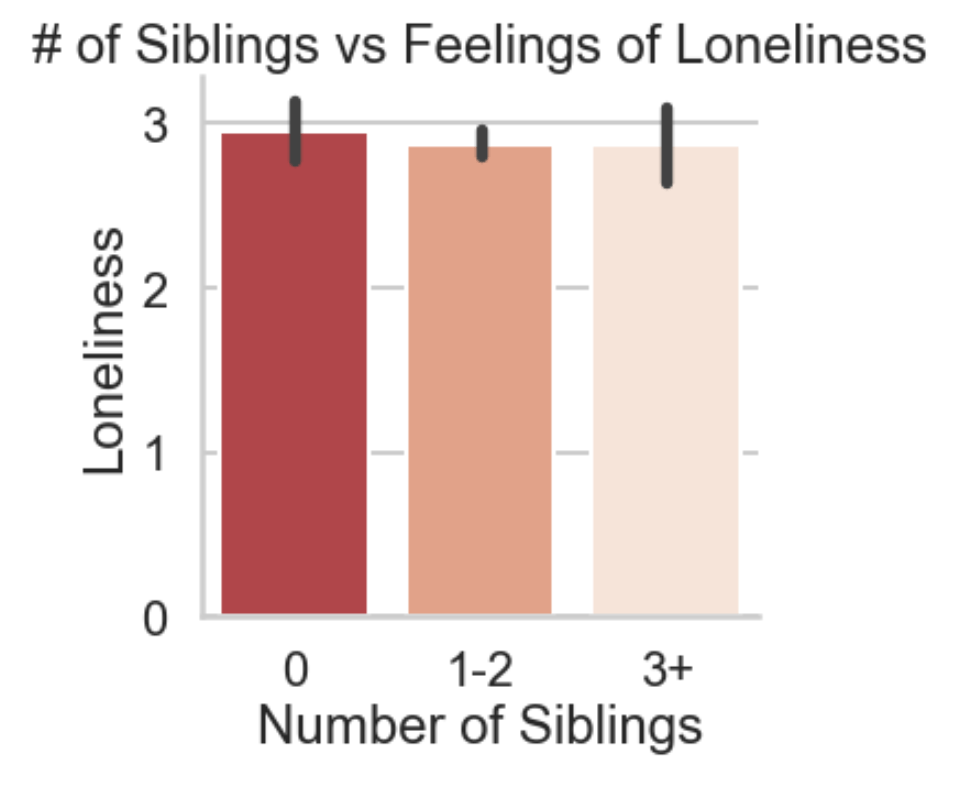
In this exercise, we’ll continue to look at the dataset containing responses from a survey of young people. Does the percentage of people reporting that they feel lonely vary depending on how many siblings they have? Let’s find out using a bar plot, while also exploring Seaborn’s four different plot scales (“contexts”).
print(survey_data.columns.tolist())
['Music', 'Techno', 'Movies', 'History', 'Mathematics', 'Pets', 'Spiders', 'Loneliness', "Parents' advice", 'Internet usage', 'Finances', 'Age', 'Siblings', 'Gender', 'Village - town', 'Age Category', "Parents' advice2"]
print(survey_data["Siblings"].unique())

survey_data["Number of Siblings"] = survey_data["Siblings"].map({0: '0', 1: '1-2', 2: '1-2', 3: '3+', 4: '3+', 5: '3+', 6: '3+', 10: '3+'})

print(survey_data["Number of Siblings"].unique())
[ 1.  2.  3. 10.  0.  4.  5. nan  6.]
['1-2' '3+' '0' nan]
# Create a count plot of survey responses
category_order = ["0", "1-2",
                  "3+"]
![]()
# Set the context to "poster"
sns.set_context(context='poster')

# Create bar plot
sns.catplot(x="Number of Siblings", y="Loneliness",
            data=survey_data, kind="bar"
           ,order =category_order)

# Show plot
plt.title('# of Siblings vs Feelings of Loneliness')
plt.show()
Using a custom palette
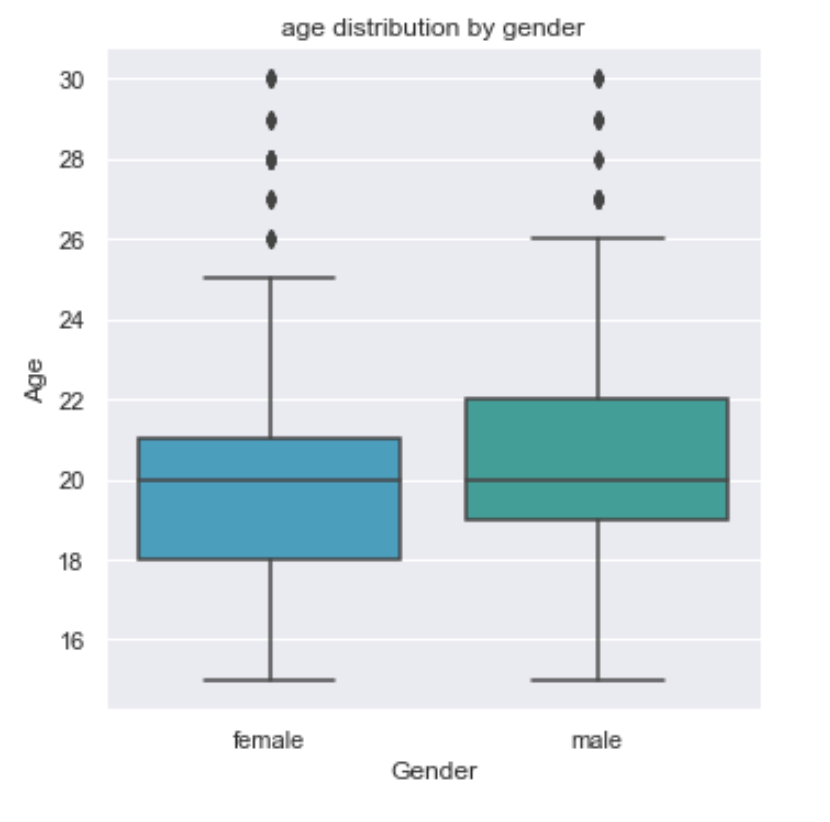
So far, we’ve looked at several things in the dataset of survey responses from young people, including their internet usage, how often they listen to their parents, and how many of them report feeling lonely. However, one thing we haven’t done is a basic summary of the type of people answering this survey, including their age and gender. Providing these basic summaries is always a good practice when dealing with an unfamiliar dataset.
The code provided will create a box plot showing the distribution of ages for male versus female respondents. Let’s adjust the code to customize the appearance, this time using a custom color palette.
# Set the context to "notebook"
sns.set_context(context='notebook')

# Set the style to "darkgrid"
sns.set_style('darkgrid')

# Set a custom color palette
sns.set_palette(["#39A7D0", "#36ADA4"])

# Create the box plot of age distribution by gender
sns.catplot(x="Gender", y="Age",
            data=survey_data[survey_data['Gender'].isin(['female', 'male'])], kind="box")

# Show plot
plt.title('age distribution by gender')
plt.show()
FacetGrids vs. AxesSubplots
In the recent lesson, we learned that Seaborn plot functions create two different types of objects: FacetGrid objects and AxesSubplot objects. The method for adding a title to your plot will differ depending on the type of object it is.
In the code provided, we’ve used relplot() with the miles per gallon dataset to create a scatter plot showing the relationship between a car’s weight and its horsepower. This scatter plot is assigned to the variable name g. Let’s identify which type of object it is.
# Create scatter plot
g = sns.relplot(x="weight",
                y="horsepower",
                data=mpg,
                kind="scatter")

# Identify plot type
type_of_g = type(g)

# Print type
print(type_of_g)
<class 'seaborn.axisgrid.FacetGrid'>

Adding a title to a FacetGrid object
In the previous exercise, we used relplot() with the miles per gallon dataset to create a scatter plot showing the relationship between a car’s weight and its horsepower. This created a FacetGrid object. Now that we know what type of object it is, let’s add a title to this plot.
# Create scatter plot
g = sns.relplot(x="weight",
                y="horsepower",
                data=mpg,
                kind="scatter")

# Add a title "Car Weight vs. Horsepower"
g.fig.suptitle("Car Weight vs. Horsepower")

# Show plot
plt.show()

Adding a title and axis labels
Let’s continue to look at the miles per gallon dataset. This time we’ll create a line plot to answer the question: How does the average miles per gallon achieved by cars change over time for each of the three places of origin? To improve the readability of this plot, we’ll add a title and more informative axis labels.
In the code provided, we create the line plot using the lineplot() function. Note that lineplot() does not support the creation of subplots, so it returns an AxesSubplot object instead of an FacetGrid object.
print(mpg.head())
    mpg  cylinders  displacement  horsepower  weight  acceleration  \
0  18.0          8         307.0       130.0    3504          12.0
1  15.0          8         350.0       165.0    3693          11.5
2  18.0          8         318.0       150.0    3436          11.0
3  16.0          8         304.0       150.0    3433          12.0
4  17.0          8         302.0       140.0    3449          10.5

   model_year origin                       name
0          70    usa  chevrolet chevelle malibu
1          70    usa          buick skylark 320
2          70    usa         plymouth satellite
3          70    usa              amc rebel sst
4          70    usa                ford torino
mpg_mean = mpg.groupby(['model_year', 'origin']).mean()

print(mpg_mean.head())
                         mpg  cylinders  displacement  horsepower  weight  \
model_year origin
70         europe  25.200000   4.000000    107.800000   86.200000  2309.2
           japan   25.500000   4.000000    105.000000   91.500000  2251.0
           usa     15.272727   7.636364    336.909091  166.954545  3716.5
71         europe  28.750000   4.000000     95.000000   74.000000  2024.0
           japan   29.500000   4.000000     88.250000   79.250000  1936.0

                   acceleration
model_year origin
70         europe     16.500000
           japan      14.750000
           usa        11.977273
71         europe     16.750000
           japan      16.375000
# Set the style to "darkgrid"
sns.set_style('ticks')

# Create line plot
g = sns.lineplot(x="model_year", y="mpg",
                 data=mpg_mean,
                 hue="origin")

# Add a title "Average MPG Over Time"
g.set_title("Average MPG Over Time")

# Add x-axis and y-axis labels
g.set(xlabel='Car Model Year', ylabel='Average MPG')

# Show plot
plt.show()

Rotating x-tick labels
In this exercise, we’ll continue looking at the miles per gallon dataset. In the code provided, we create a point plot that displays the average acceleration for cars in each of the three places of origin. Note that the "acceleration" variable is the time to accelerate from 0 to 60 miles per hour, in seconds. Higher values indicate slower acceleration.
Let’s use this plot to practice rotating the x-tick labels. Recall that the function to rotate x-tick labels is a standalone Matplotlib function and not a function applied to the plot object itself.
# Create point plot
sns.catplot(x="origin",
            y="acceleration",
            data=mpg,
            kind="point",
            join=False,
            capsize=0.1)

# Rotate x-tick labels
plt.xticks(rotation = 45)

# Show plot
plt.show()

Box plot with subgroups
In this exercise, we’ll look at the dataset containing responses from a survey given to young people. One of the questions asked of the young people was: “Are you interested in having pets?” Let’s explore whether the distribution of ages of those answering “yes” tends to be higher or lower than those answering “no”, controlling for gender.
# Read Updated Version of fear_survey
data = np.loadtxt('survey_data4.txt', delimiter='\\n', dtype=str)
df = pd.DataFrame(data)
survey_data = df[0].str.split(',', expand=True)

# Promote 1st row to column headers
survey_data.columns = survey_data.iloc[0]
survey_data.drop(survey_data.index[1])

# Drop duplicate header row and index columns
survey_data.drop(index=0, inplace=True)
survey_data.drop(columns=survey_data.columns[0:1], axis=1, inplace=True)

# Convert dtypes
survey_data["Music"] = pd.to_numeric(survey_data["Music"])
survey_data["Techno"] = pd.to_numeric(survey_data["Techno"])
survey_data["Movies"] = pd.to_numeric(survey_data["Movies"])
survey_data["History"] = pd.to_numeric(survey_data["History"])
survey_data["Mathematics"] = pd.to_numeric(survey_data["Mathematics"])
survey_data["Pets"] = pd.to_numeric(survey_data["Pets"])
survey_data["Spiders"] = pd.to_numeric(survey_data["Spiders"])
survey_data["Loneliness"] = pd.to_numeric(survey_data["Loneliness"])
survey_data["Parents' advice"] = pd.to_numeric(survey_data["Parents' advice"])
survey_data["Finances"] = pd.to_numeric(survey_data["Finances"])
survey_data["Age"] = pd.to_numeric(survey_data["Age"])
survey_data["Siblings"] = pd.to_numeric(survey_data["Siblings"])

print(survey_data.head())
0 Unnamed: 0  Music  Techno  Movies  History  Mathematics  Pets  Spiders  \
1          0    5.0     1.0     5.0      1.0          3.0   4.0      1.0
2          1    4.0     1.0     5.0      1.0          5.0   5.0      1.0
3          2    5.0     1.0     5.0      1.0          5.0   5.0      1.0
4          3    5.0     2.0     5.0      4.0          4.0   1.0      5.0
5          4    5.0     2.0     5.0      3.0          2.0   1.0      1.0

0  Loneliness  Parents' advice   Internet usage  Finances   Age  Siblings  \
1         3.0              4.0  few hours a day       3.0  20.0       1.0
2         2.0              2.0  few hours a day       3.0  19.0       2.0
3         5.0              3.0  few hours a day       2.0  20.0       2.0
4         5.0              2.0  most of the day       2.0  22.0       1.0
5         3.0              3.0  few hours a day       4.0  20.0       1.0

0  Gender Village - town Interested in Pets
1  female        village                Yes
2  female           city                Yes
3  female           city                Yes
4  female           city                 No
5  female        village                 No
# Set palette to "Blues"
sns.set_palette('Blues')

# Adjust to add subgroups based on "Interested in Pets"
g = sns.catplot(x="Gender",
                y="Age", data=survey_data,
                kind="box", hue='Interested in Pets')

# Set title to "Age of Those Interested in Pets vs. Not"
g.fig.suptitle('Age of Those Interested in Pets vs. Not')

# Show plot
plt.show()

# Read Updated Version of fear_survey
data = np.loadtxt('survey_data5.txt', delimiter='\\n', dtype=str)
df = pd.DataFrame(data)
survey_data = df[0].str.split(',', expand=True)

# Promote 1st row to column headers
survey_data.columns = survey_data.iloc[0]
survey_data.drop(survey_data.index[1])

# Drop duplicate header row and index columns
survey_data.drop(index=0, inplace=True)
survey_data.drop(columns=survey_data.columns[0:1], axis=1, inplace=True)

# Convert dtypes
survey_data["Music"] = pd.to_numeric(survey_data["Music"])
survey_data["Techno"] = pd.to_numeric(survey_data["Techno"])
survey_data["Movies"] = pd.to_numeric(survey_data["Movies"])
survey_data["History"] = pd.to_numeric(survey_data["History"])
survey_data["Mathematics"] = pd.to_numeric(survey_data["Mathematics"])
survey_data["Pets"] = pd.to_numeric(survey_data["Pets"])
survey_data["Spiders"] = pd.to_numeric(survey_data["Spiders"])
survey_data["Loneliness"] = pd.to_numeric(survey_data["Loneliness"])
survey_data["Parents' advice"] = pd.to_numeric(survey_data["Parents' advice"])
survey_data["Finances"] = pd.to_numeric(survey_data["Finances"])
survey_data["Age"] = pd.to_numeric(survey_data["Age"])
survey_data["Siblings"] = pd.to_numeric(survey_data["Siblings"])

dmap = {'nan': 0,'False':0, 'True': 1 }
survey_data["Likes Techno"] = survey_data["Likes Techno"].map(dmap)
survey_data["Likes Techno"] = survey_data["Likes Techno"].astype('bool')

print(survey_data.head())
0 Unnamed: 0  Music  Techno  Movies  History  Mathematics  Pets  Spiders  \
1          0    5.0     1.0     5.0      1.0          3.0   4.0      1.0
2          1    4.0     1.0     5.0      1.0          5.0   5.0      1.0
3          2    5.0     1.0     5.0      1.0          5.0   5.0      1.0
4          3    5.0     2.0     5.0      4.0          4.0   1.0      5.0
5          4    5.0     2.0     5.0      3.0          2.0   1.0      1.0

0  Loneliness  Parents' advice   Internet usage  Finances   Age  Siblings  \
1         3.0              4.0  few hours a day       3.0  20.0       1.0
2         2.0              2.0  few hours a day       3.0  19.0       2.0
3         5.0              3.0  few hours a day       2.0  20.0       2.0
4         5.0              2.0  most of the day       2.0  22.0       1.0
5         3.0              3.0  few hours a day       4.0  20.0       1.0

0  Gender Village - town  Likes Techno
1  female        village         False
2  female           city         False
3  female           city         False
4  female           city         False
5  female        village         False
# Adjust to add subplots per gender
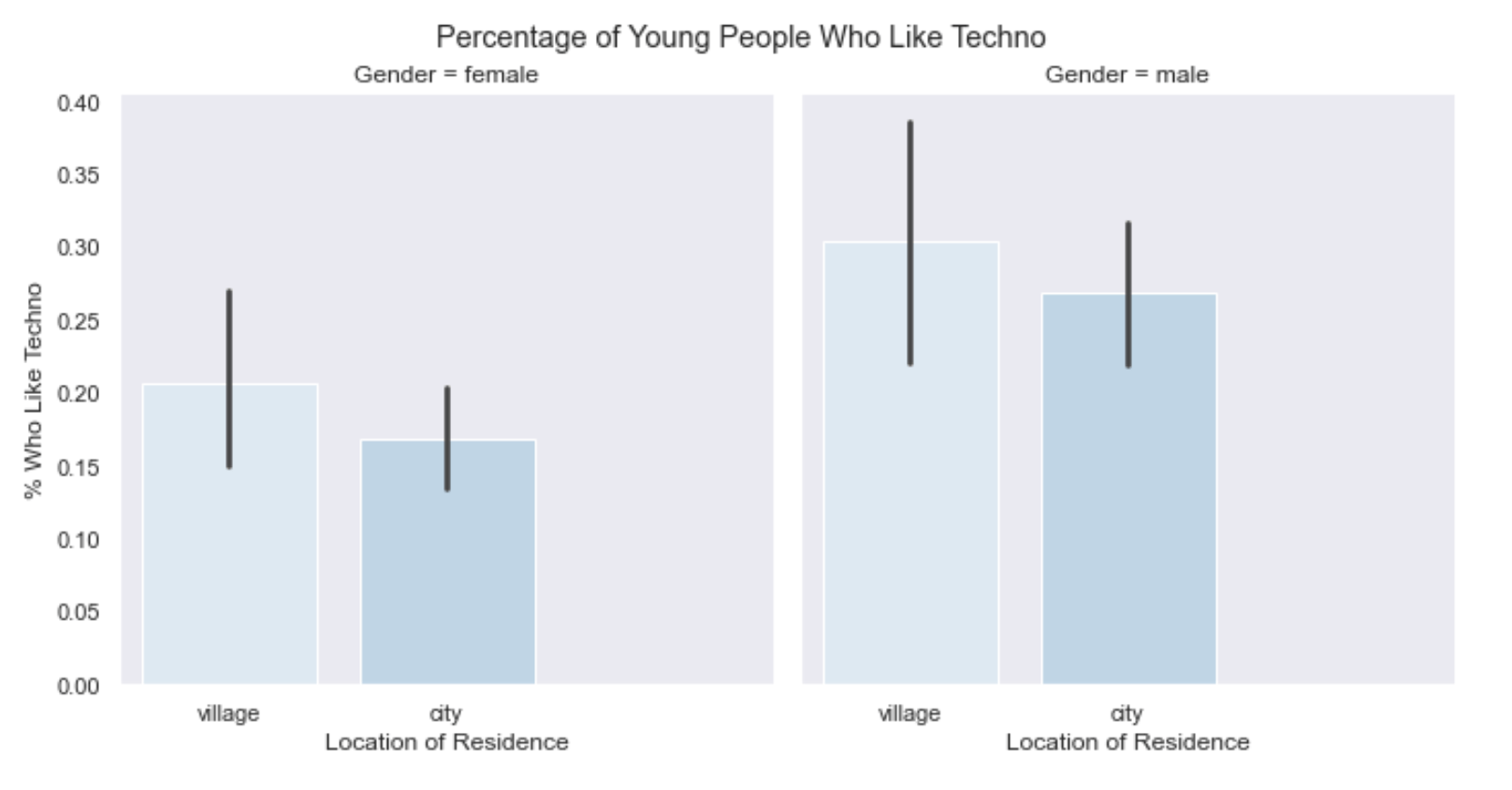
g = sns.catplot(x="Village - town", y="Likes Techno",
                data=survey_data[survey_data['Gender'].isin(['female','male'])], kind="bar",
                col='Gender')

# Add title and axis labels
g.fig.suptitle("Percentage of Young People Who Like Techno", y=1.02)
g.set(xlabel="Location of Residence",
       ylabel="% Who Like Techno")

# Show plot
plt.show()
 My Data Was A Miner